Get started
Introduction
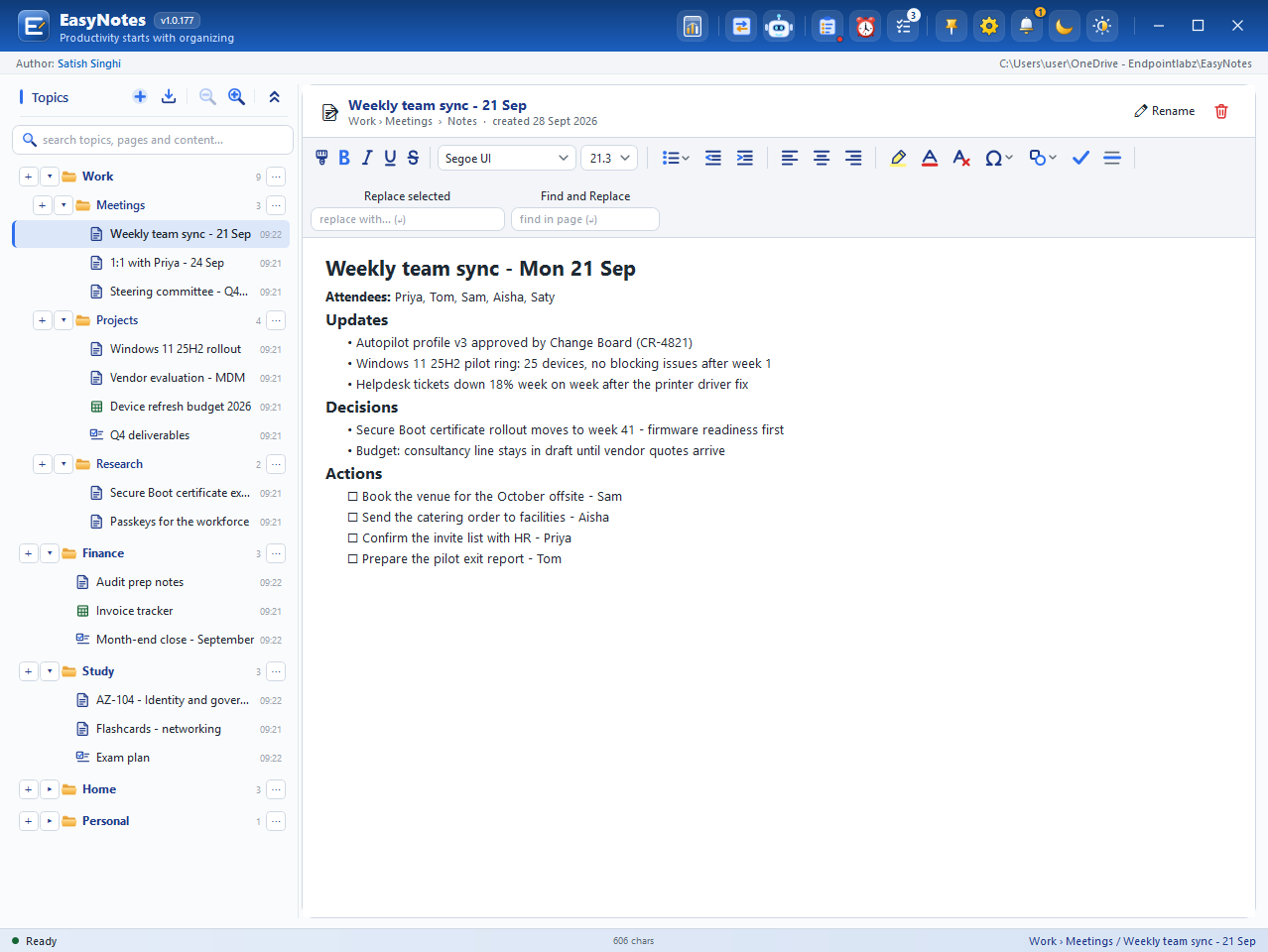
EasyNotes is a Windows desktop app for the notes you keep while you work: meeting actions, research, checklists, budgets and study notes, organised into topics. Topics hold sub-topics and pages, and every page is saved the moment you type – there is no Save button.
It lives in the system tray, comes to the front with Ctrl + Shift + Space and keeps the small things within reach: what you copied ten minutes ago, the to-do buried in yesterday's meeting notes, the snippet you need to carry between apps. Scheduled, verified backups protect it all, and an optional local MCP endpoint lets your AI tools work with your notes under rules you set.
System requirements
| Windows | Windows 10 version 2004 (build 19041) or later, and Windows 11 (tested up to 24H2) |
|---|---|
| Processor | x64 |
| Runtime | Nothing extra to install – the Microsoft Store package includes .NET 10 |
| Permissions | A standard user account. EasyNotes never asks for administrator rights |
| Internet | Not needed. To use your notes on more than one PC, keep them in a folder that OneDrive, Google Drive or Dropbox syncs |
| OneNote import (optional) | OneNote 2016 or the Microsoft 365 OneNote desktop app, 32- or 64-bit. The OneNote for Windows 10 app and OneNote on the web cannot be read |
| AI tools (optional) | Any MCP client – for example Claude Desktop, Claude Code or Cursor |
| Language | English |
Installation options
EasyNotes is free. Both options below install the same Microsoft Store package: per user, updated automatically, with a Start menu entry and Windows managing Start at sign-in.
Microsoft Store
Search for EasyNotes in the Microsoft Store, or use the button below.
Get it fromMicrosoft StorePlaceholder – the Store link goes live when the listing is published.
winget
Windows Package Manager installs the Store package from a terminal. It is part of App Installer on Windows 10 1809+ and Windows 11.
> winget install 9NXXXXXXXXXX -s msstore
Placeholder – 9NXXXXXXXXXX becomes the Store product ID at publication.
Uninstalling
Remove EasyNotes from Settings › Apps (or winget uninstall). Its preferences and logs are removed with it. Your notes folder and your backup folder are left exactly as they are – nothing you wrote is deleted.
EasyNotes ships Group Policy (ADMX/ADML) templates that work with Intune and other MDMs. They can set a default, block or enforce: MCP and its rules, port and policy file, the session clipboard, scheduled backups, the backup folder, frequency and retention, and the notes folder. Managed controls show “Managed by your organisation” and cannot be changed by the user. An enforced MCP setting that cannot be read from a trusted file keeps MCP off.
First launch
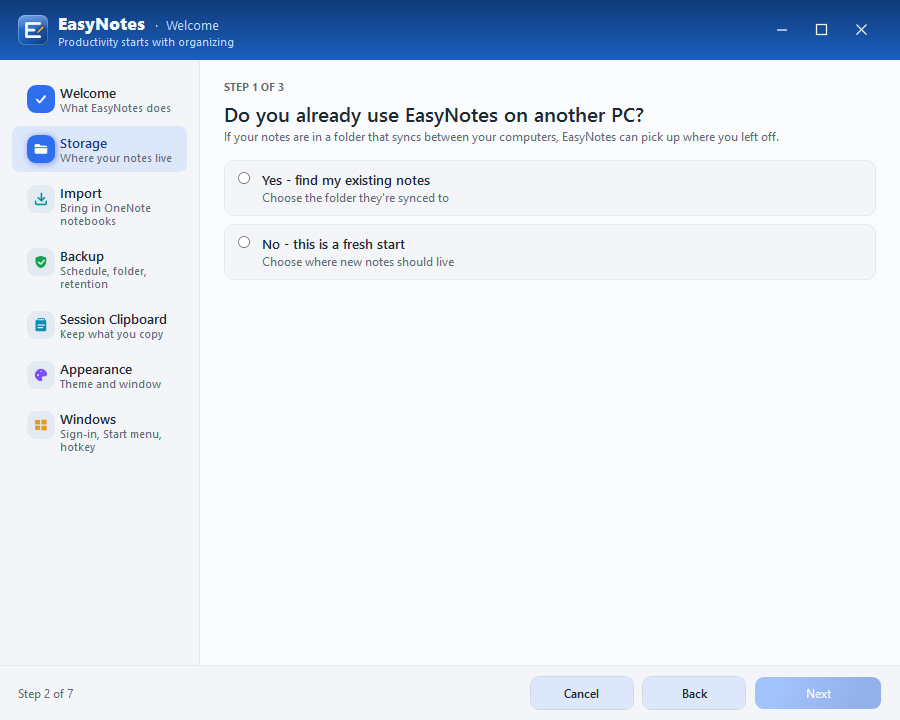
The first time EasyNotes starts, a short splash leads into a seven-step setup. Every choice can be changed later from the gear in the header, and Cancel never leaves you stranded: if you stop early, your notes go to a safe local folder that you can change in Settings › Storage.
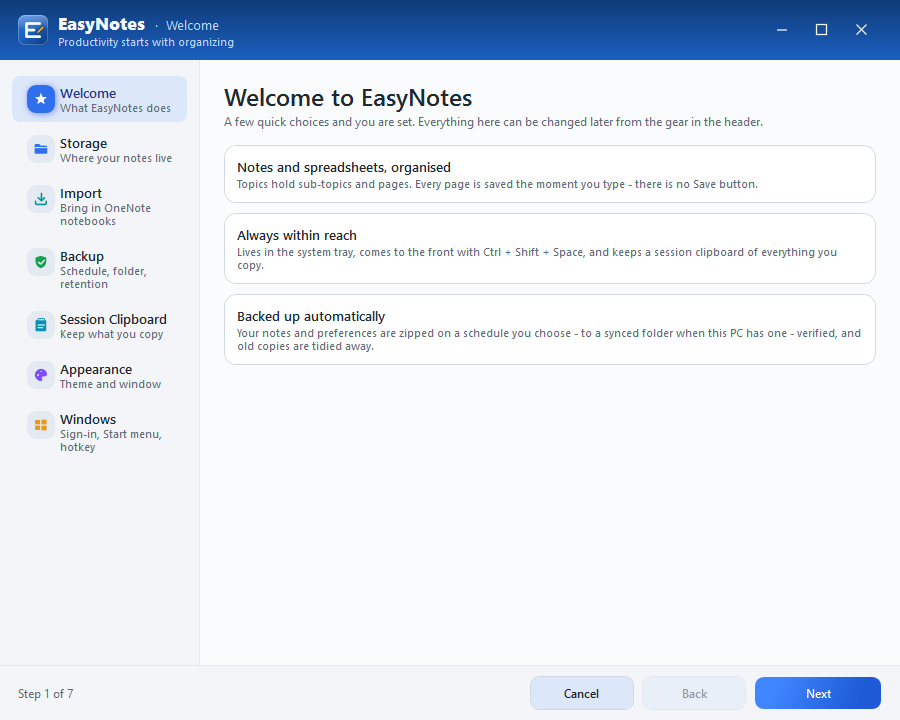
- Welcome – what EasyNotes does, in three cards.
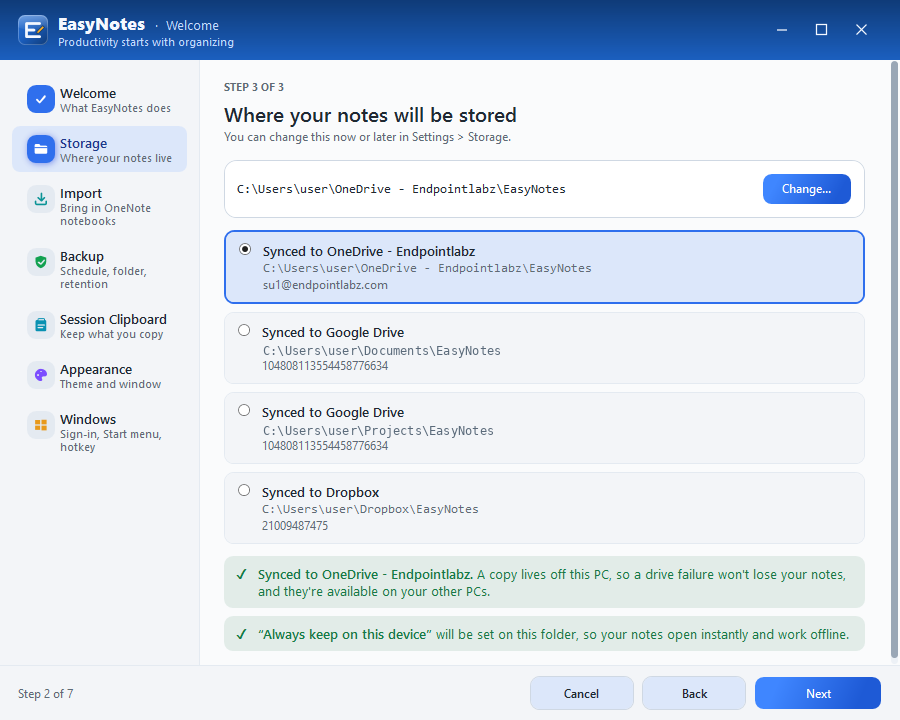
- Storage – “Do you already use EasyNotes on another PC?” Pick up an existing synced folder, or start fresh in a folder you choose. See User Data.
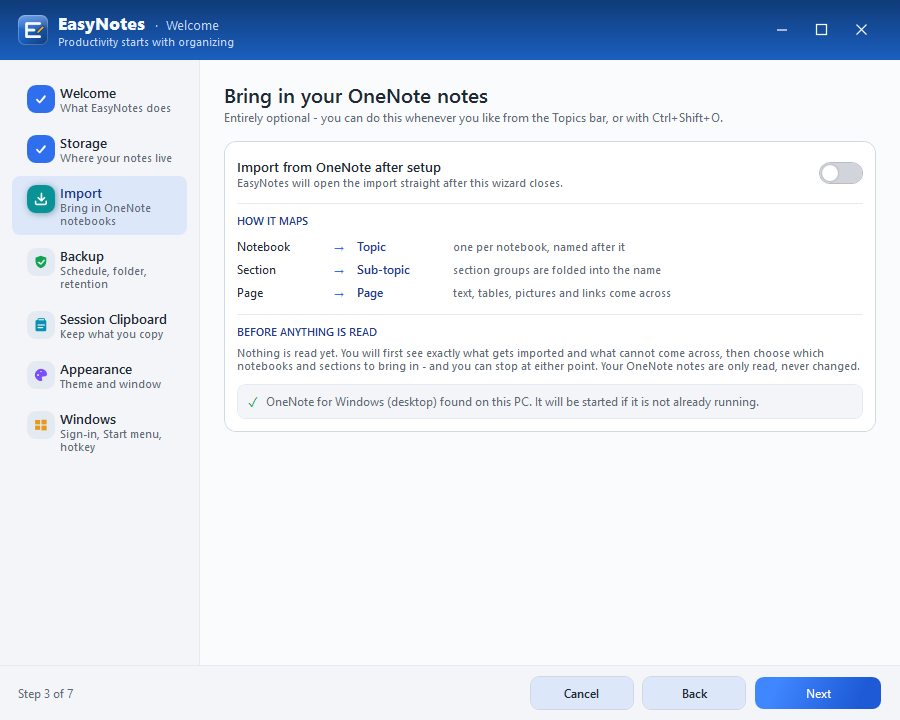
- Import – optionally open the OneNote import straight after setup.
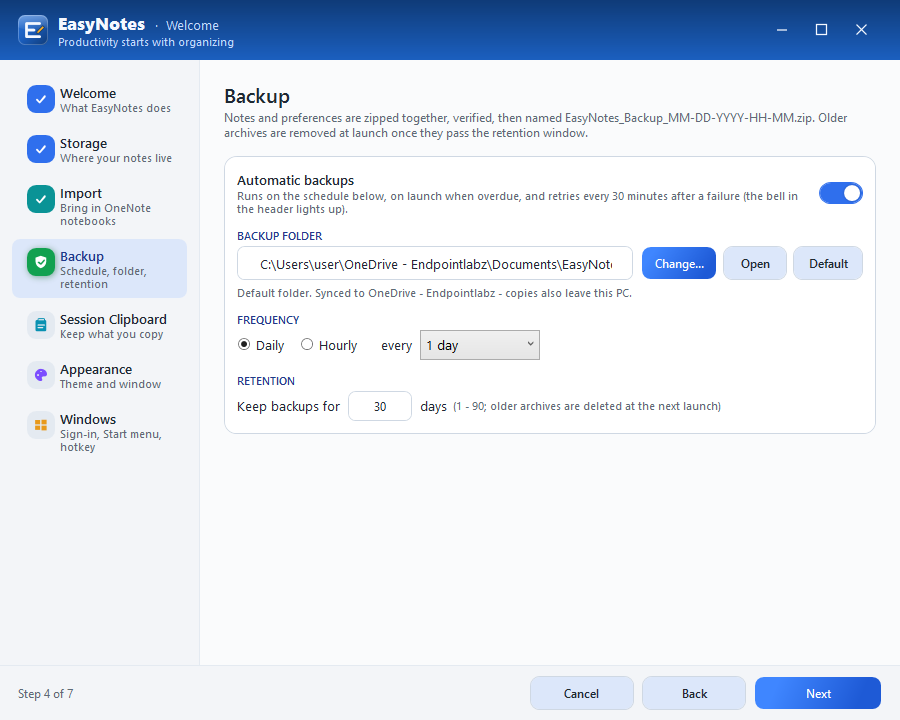
- Backup – automatic backups, the backup folder, frequency and retention.
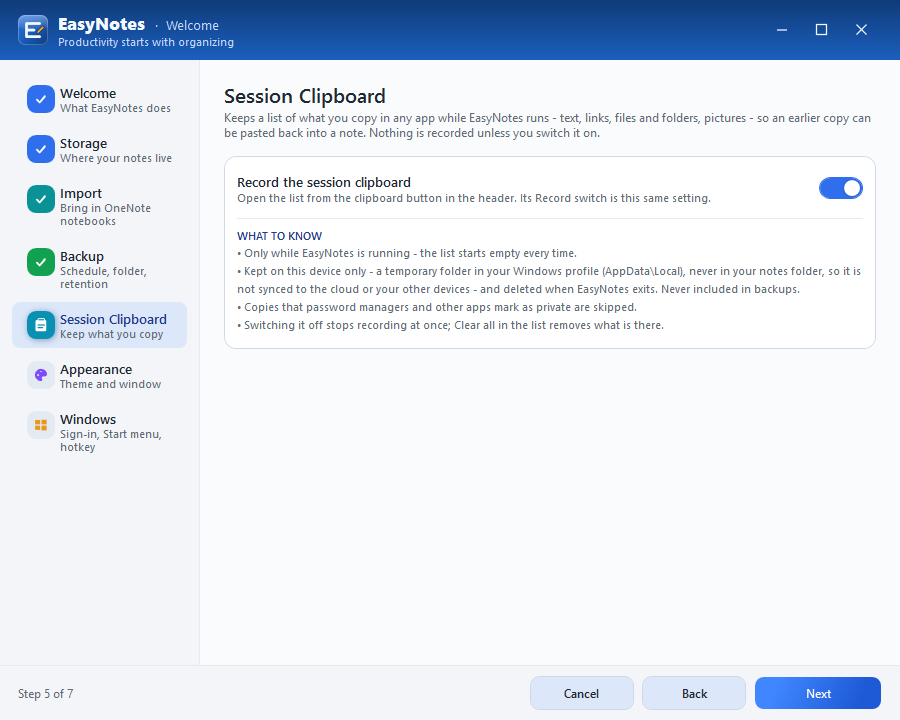
- Session Clipboard – off unless you switch it on.
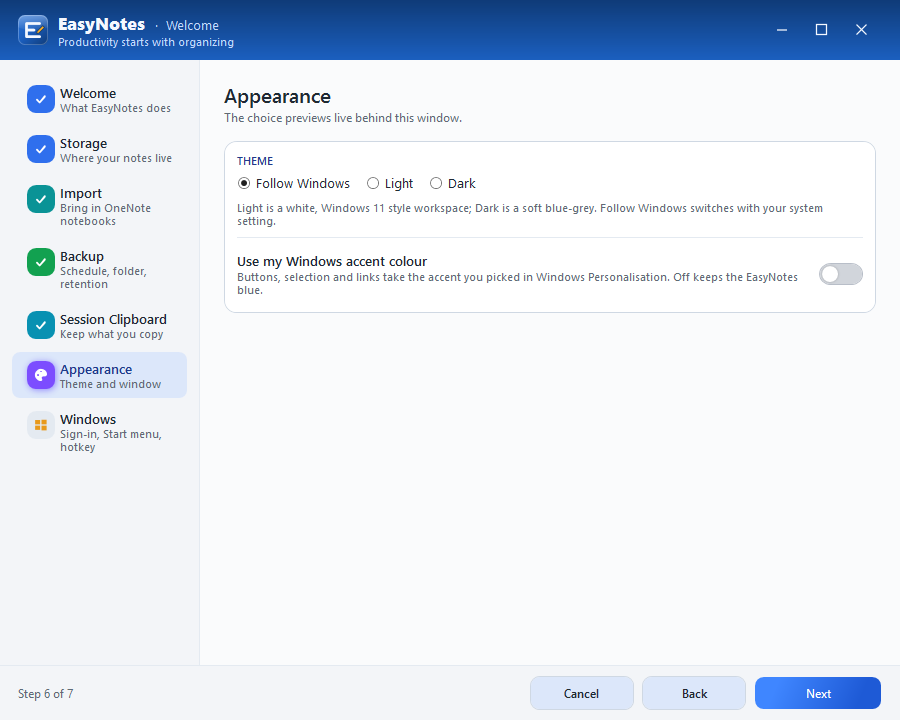
- Appearance – Follow Windows, Light or Dark, and optionally your Windows accent colour.
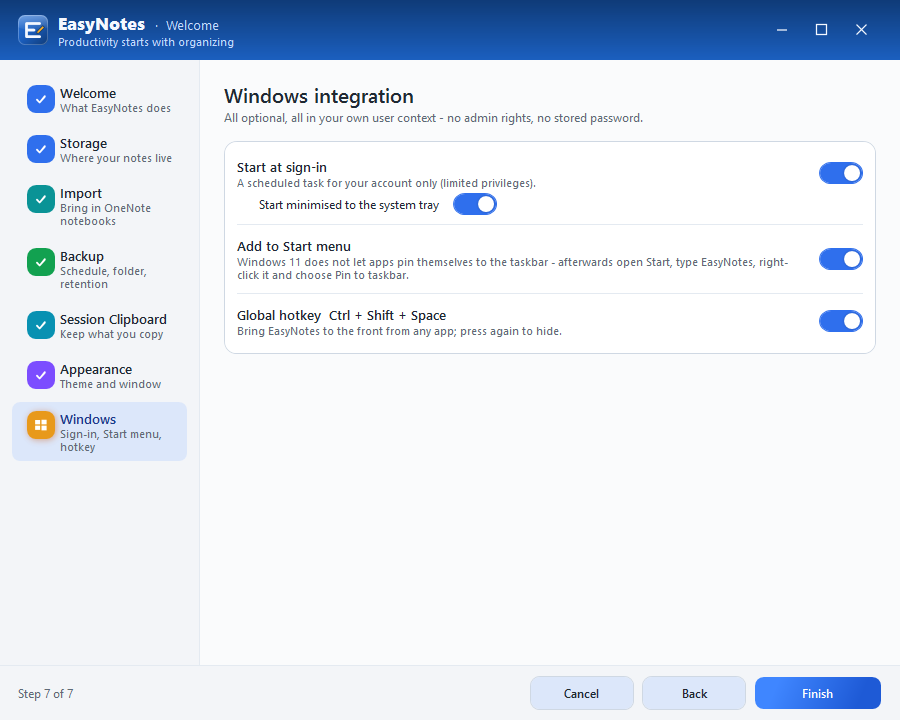
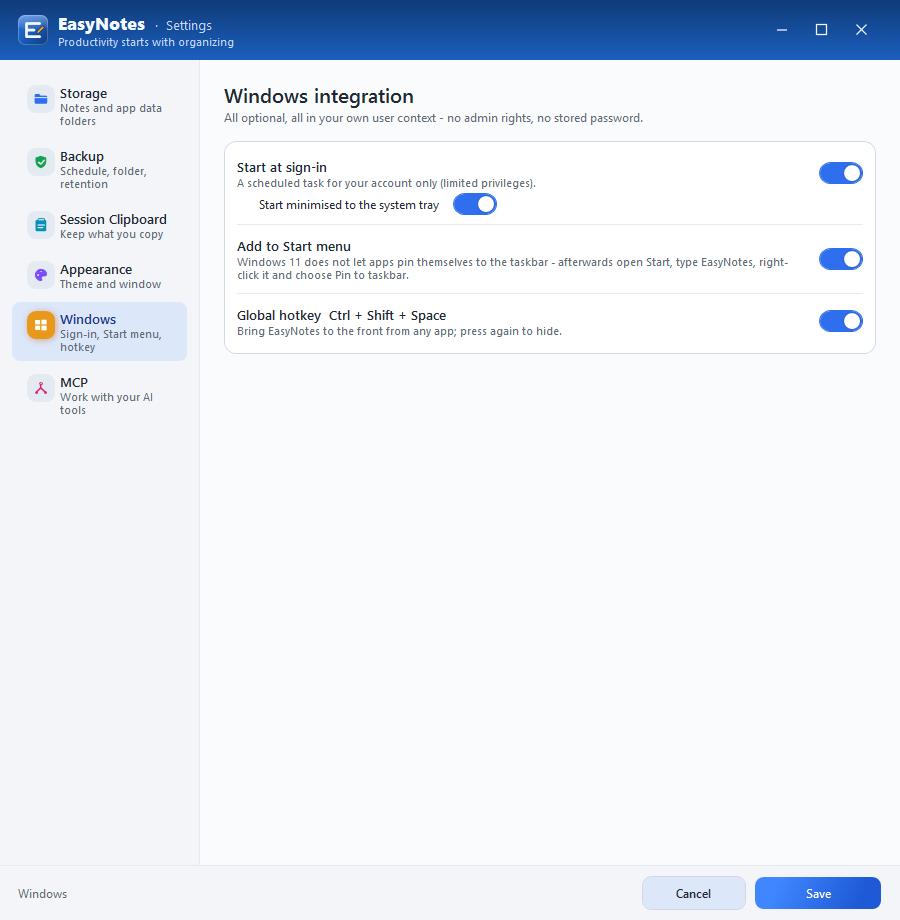
- Windows – Start at sign-in (minimised to the tray), the Start menu entry and the global hotkey Ctrl+Shift+Space. All in your own user context – no admin rights, no stored password.
User Data path and recommendation
EasyNotes keeps two folders apart: one for your notes, one for the app’s own preferences and logs.
| User Data (your notes) | index.json, one file per page (.rtf for notes and checklists, .csv for spreadsheets), pictures in pages\assets, deleted items in trash, Transit and a copy of your reminders |
|---|---|
| App Data (the app) | Preferences, the app and backup logs, the MCP audit log, notifications and backup history. %LOCALAPPDATA%\EasyNotes, or the package’s own storage for the Store app |
| Temporary | The session clipboard and undo history, under App Data – deleted when EasyNotes exits |
A synced folder keeps a copy off the PC, so a drive failure doesn’t take your notes with it, and makes them available on your other PCs. EasyNotes has no cloud of its own – it uses the sync app you already have.
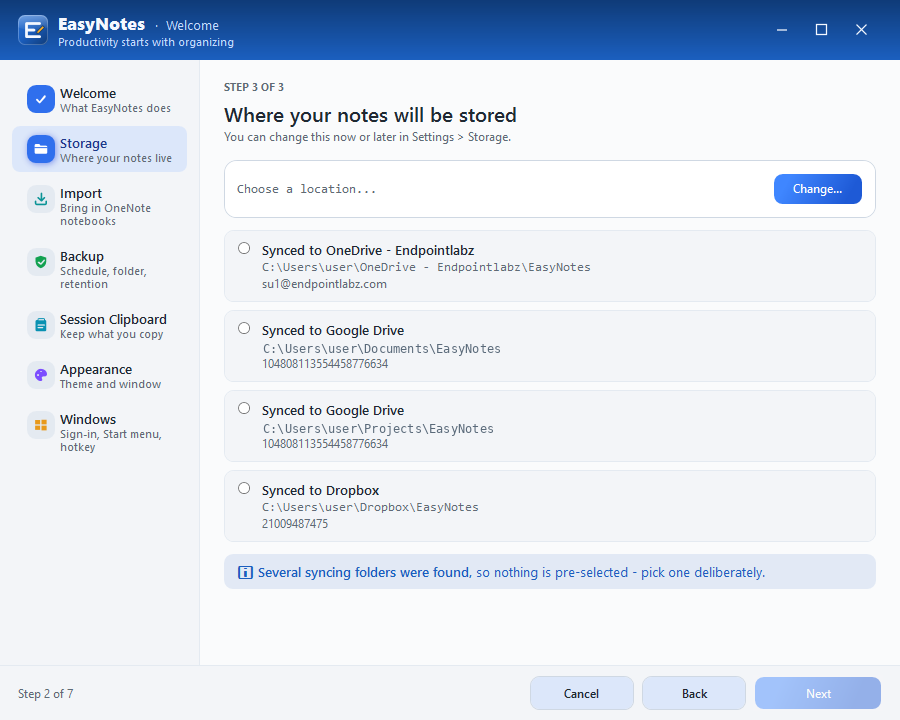
During setup EasyNotes looks for the syncing locations on the PC and offers them as tiles:
- OneDrive – personal and work or school accounts.
- Google Drive – folders on this PC that Google Drive syncs. The streaming drive (G:) is left out: it holds cloud content, not folders on this PC.
- Dropbox – personal and business.
- Other folder – any local, offline or undetected location. EasyNotes warns when a folder is on this PC only.
With one syncing location, <that folder>\EasyNotes is pre-filled. With several, nothing is pre-selected so you choose deliberately. With none, the default is %USERPROFILE%\EasyNotes. For OneDrive and Dropbox, setup also sets Always keep on this device on the folder, so your notes open instantly and work offline.
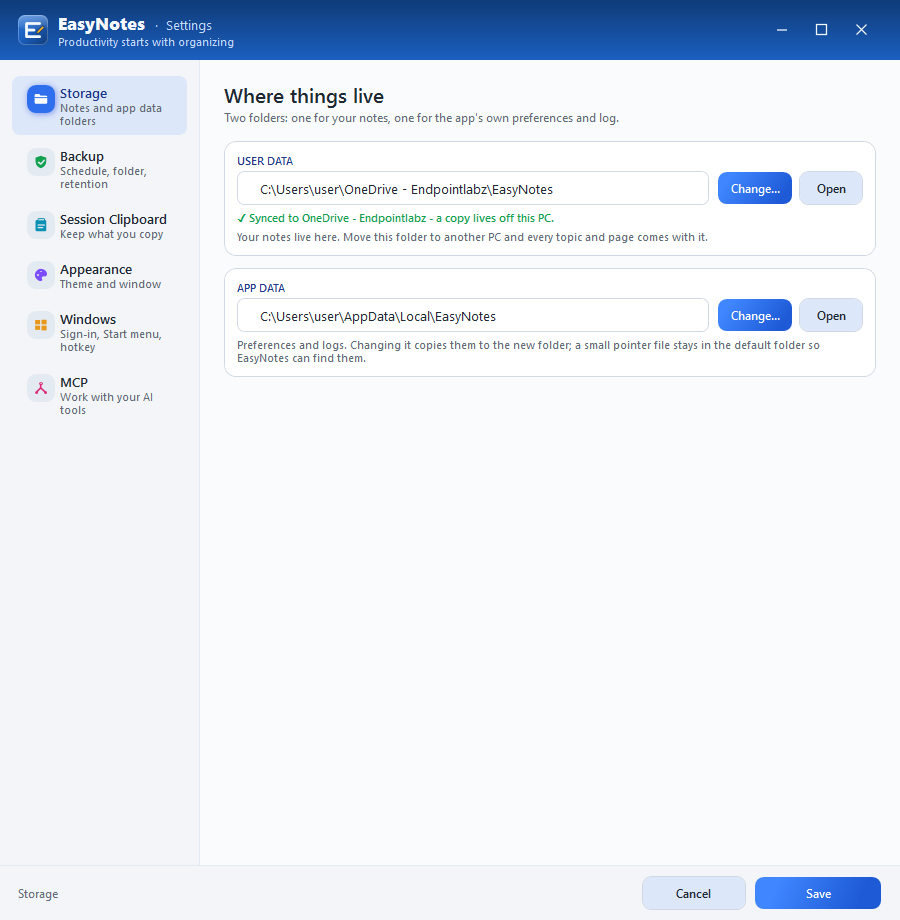
Using EasyNotes on two PCs
Point both PCs at the same synced folder. On the second PC, the Storage step finds it (“Your EasyNotes data is already here”) and carries on with every topic and page. Changes from both PCs are merged, and sync-conflict copies are merged automatically.
Changing the folder later
Settings › Storage › Change… offers a backup first (Backup & Proceed), then EasyNotes opens the new folder. It does not move or copy notes, and nothing is deleted from the old folder – it is left exactly as it is.
Backup: path, frequency and retention
Backups are on by default. Your notes and preferences are zipped on the schedule you choose, verified, and old archives are tidied away.
| Folder | OneDrive\Documents\EasyNotes_Backup when OneDrive is signed in, otherwise Documents\EasyNotes_Backup. Any folder outside your notes folder can be chosen |
|---|---|
| Frequency | Daily, every 1–7 days (default: every day), or Hourly, every 2, 4 or 8 hours |
| Retention | 1–90 days (default 30). Older archives are deleted at the next launch |
| File name | EasyNotes_Backup_MM-DD-YYYY-HH-MM.zip – an existing archive is never overwritten |
| What’s inside | The whole notes folder (including trash, Transit and reminders), your preferences, the app log and a manifest. Never the session clipboard |
Each archive is written as a partial file, re-opened, and checked entry by entry before it gets its final name. Backups run at launch when one is overdue and on schedule after that. If one fails, EasyNotes retries every 30 minutes and lights the bell in the header until a backup succeeds.
The folder hint tells you what the location protects against – for example “Synced to OneDrive - copies also leave this PC”, or “On this PC only, same drive as your notes – protects against mistakes, not against losing this PC or its drive”.
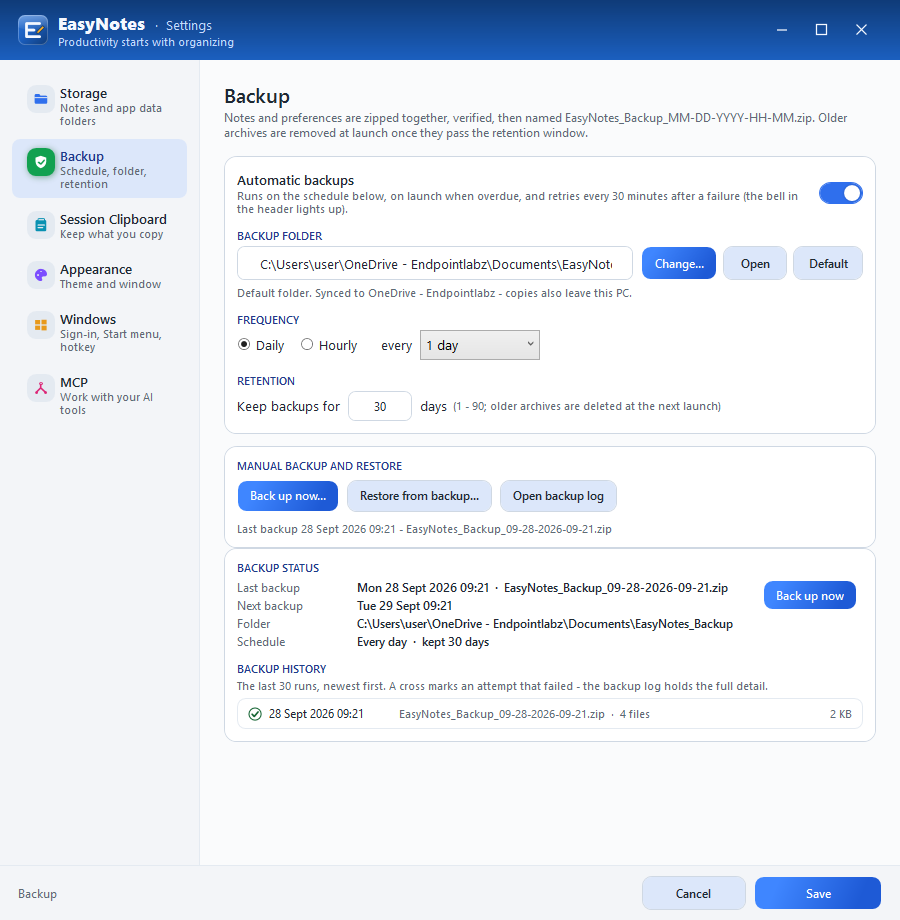
Back up now and restore
Settings › Backup has Back up now, the last 30 runs in Backup history and Open backup log. Restore from backup… checks the archive first, renames your current notes folder to …_before-restore_<date> – nothing is deleted – and reloads the restored notes. Preferences are not changed by a restore.
MCP setup
The Model Context Protocol lets AI tools – Claude Desktop, Claude Code, Cursor and any other MCP client – read and write your notes through the running app. It is off by default, reachable from this PC only, and every client needs its own token. Every call is logged, and every write can be shown to you.
- Enable it. Open Settings › MCP (or click the bot in the header) and switch on Enable MCP integration. EasyNotes starts a local endpoint on
http://127.0.0.1:47391/mcpwhile it runs; the port can be changed. - Create a token for each client. Name it, pick a scope and click Create token. The token is shown once – EasyNotes keeps only its hash.
- Connect the client. Copy Claude Desktop config puts a ready-made block on the clipboard; merge it into
claude_desktop_config.jsonand restart Claude Desktop. Copy Claude Code command does the same for Claude Code. - Write your rules (optional). Plain-language instructions that every AI tool receives the moment it connects.
{
  "mcpServers": {
    "easynotes": {
      "command": "%LOCALAPPDATA%\\Microsoft\\WindowsApps\\EasyNotes.exe",
      "args": ["--mcp"],
      "env": { "EASYNOTES_MCP_TOKEN": "<your token>" }
    }
  }
}The config starts EasyNotes.exe --mcp as a stdio relay to the running app, and starts EasyNotes minimised if it isn’t running. The token travels in an environment variable of that process, never on a command line. The copy button in EasyNotes fills in the exact path for your install.
| read | Look only – topics, pages, search, reminders, Transit, the session clipboard, backups and settings |
|---|---|
| write (default) | Also create, change, append, move, rename and open pages and topics, set cells, add reminders, use Transit and the clipboard, run a backup |
| full | Also delete and clear. Deleted pages still go to the notes folder’s trash |
Rules for AI tools
Rules reach the AI when it connects, through the get_rules tool, at the top of every write tool’s description and again after every write. Typical rules:
1. Never read, change or delete anything under the topic “Personal”.
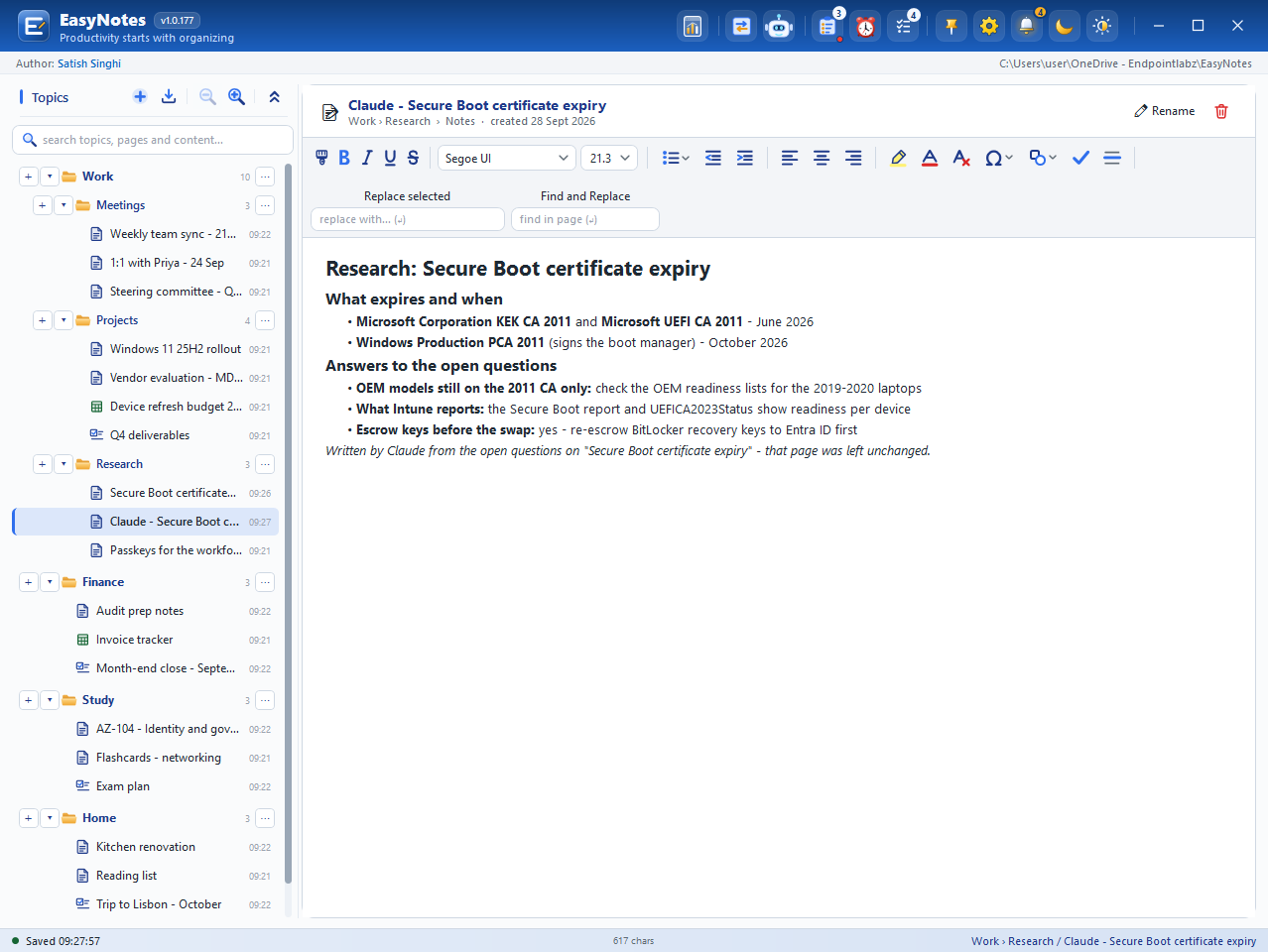
2. Never change my existing notes. Put your version on a new page right below the page you worked from, with the title prefixed “Claude - ”.
3. Keep my headings and bullet style.
Rules are requests to the AI, not locks: a tool can still ignore them. Token scopes are the hard limit, and every call – read or write – stays in the audit log.
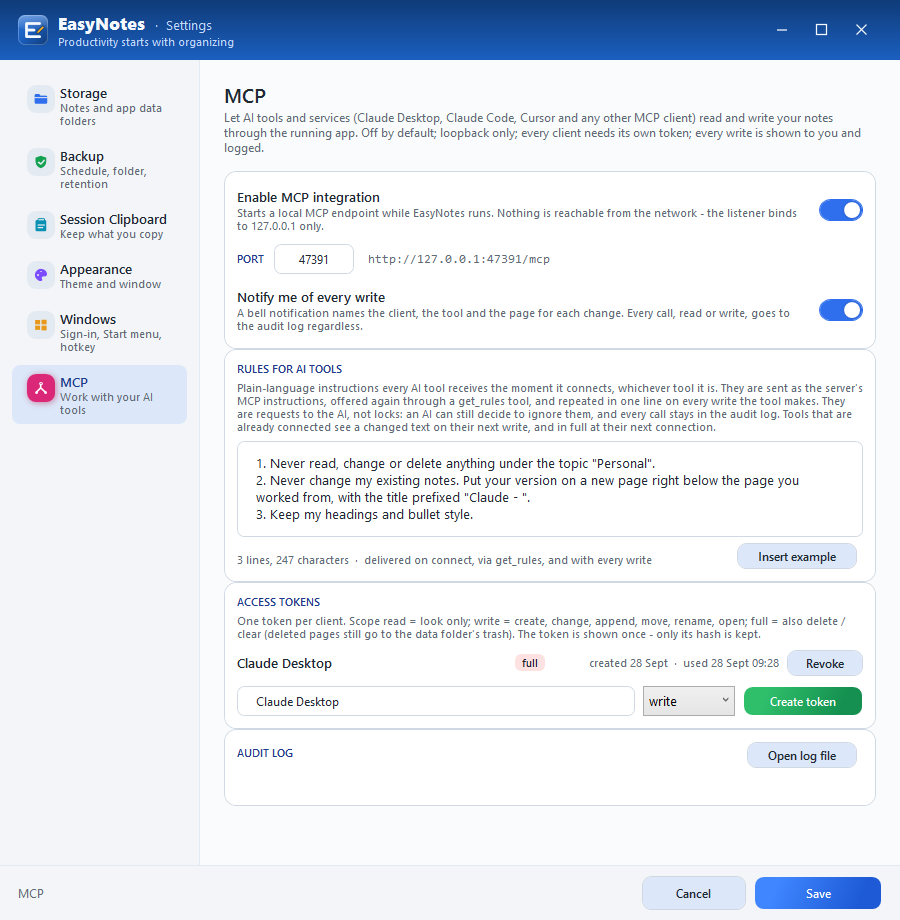
All 46 MCP tools
read (15) get_rules, get_status, list_topics, list_pages, get_page, search, get_page_history, list_reminders, get_transit, list_clipboard, get_clipboard_entry, list_page_images, list_notifications, list_backups, get_settings
write (25) open_page, show_dashboard, create_topic, rename_topic, move_topic, create_page, update_page, append_to_page, insert_into_page, replace_in_page, rename_page, move_page, undo_page, set_cell, create_reminder, complete_reminder, reschedule_reminder, append_to_transit, send_to_transit, copy_to_clipboard, paste_clipboard_entry, insert_image, insert_shape, mark_notifications_read, run_backup
full (6) delete_topic, delete_page, delete_reminder, clear_transit, remove_clipboard_entry, remove_image
OneNote import
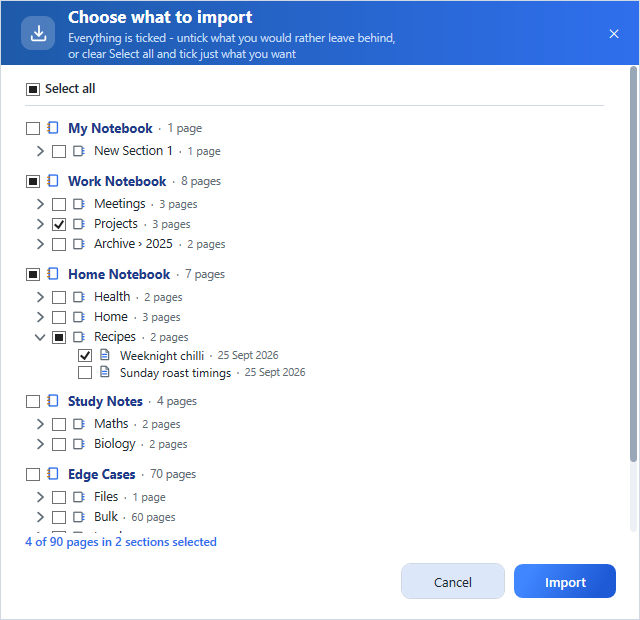
Bring your OneNote notebooks across in one go. Start it from the import button on the Topics bar, with Ctrl+Shift+O, by right-clicking empty space in the tree, or by ticking it during setup. It needs the OneNote desktop app (OneNote 2016 or Microsoft 365).
| OneNote notebook | → Topic |
|---|---|
| Section | → Sub-topic (a section in a section group is named “Group › Section”) |
| Page | → Page (sub-pages come across as ordinary pages) |
Comes across as it is
- Text with its font, size, colour, highlight and emphasis
- Bullets, numbering and indent levels
- Tables with column widths and cell shading
- Links, including links back into OneNote
- Pictures, where they sat on the page
Changes on the way
- Handwriting and drawings become a picture of the page
- Embedded files are copied to the page’s assets and shown as links
- Tags and to-do boxes become symbols (☐ ☑ ★ ⚑)
- Audio, video, page history, author stamps and password-protected sections are not imported
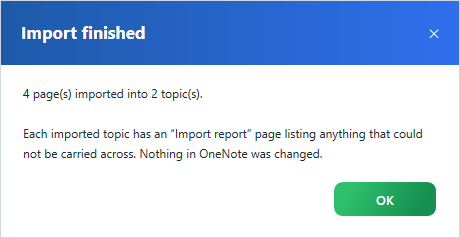
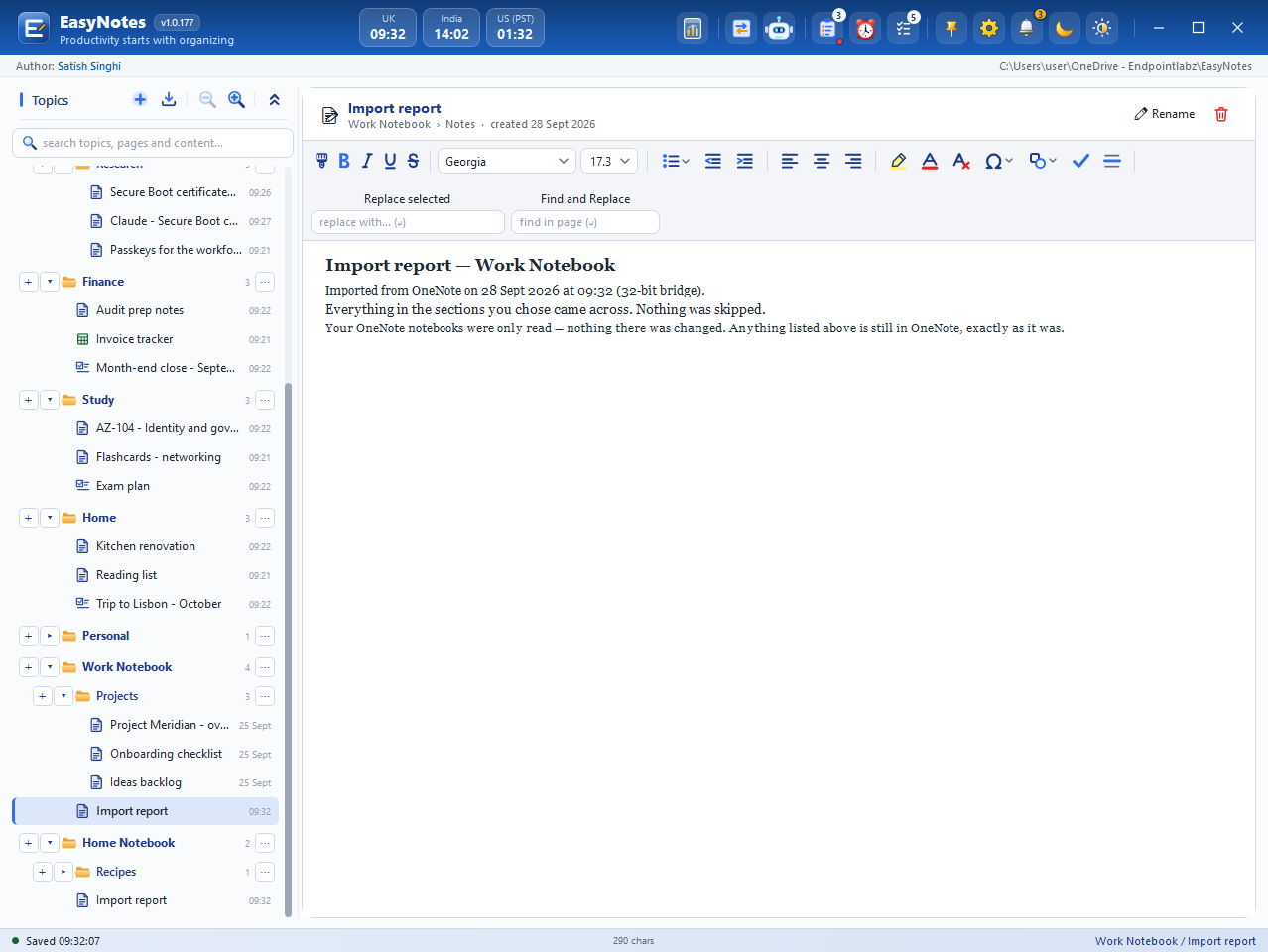
You see all of this before anything is read. Then you choose what to bring in: everything is ticked; untick what you would rather leave behind, or clear Select all and tick just the sections – or single pages, behind each section’s arrow – that you want. OneNote is only read, never changed. Imported topics are added beside what you have; a repeat import creates a new topic. Anything that could not be converted is listed on an Import report page in each imported topic, so nothing goes missing quietly.
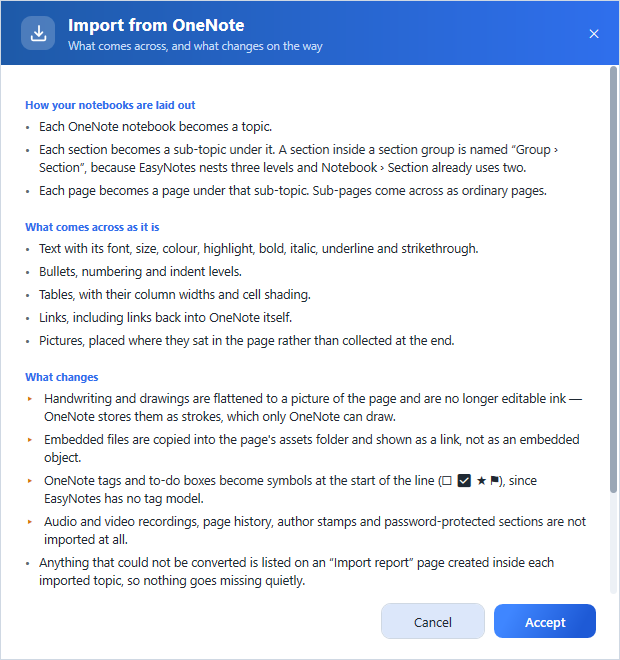
Use EasyNotes
Key features
Dashboard
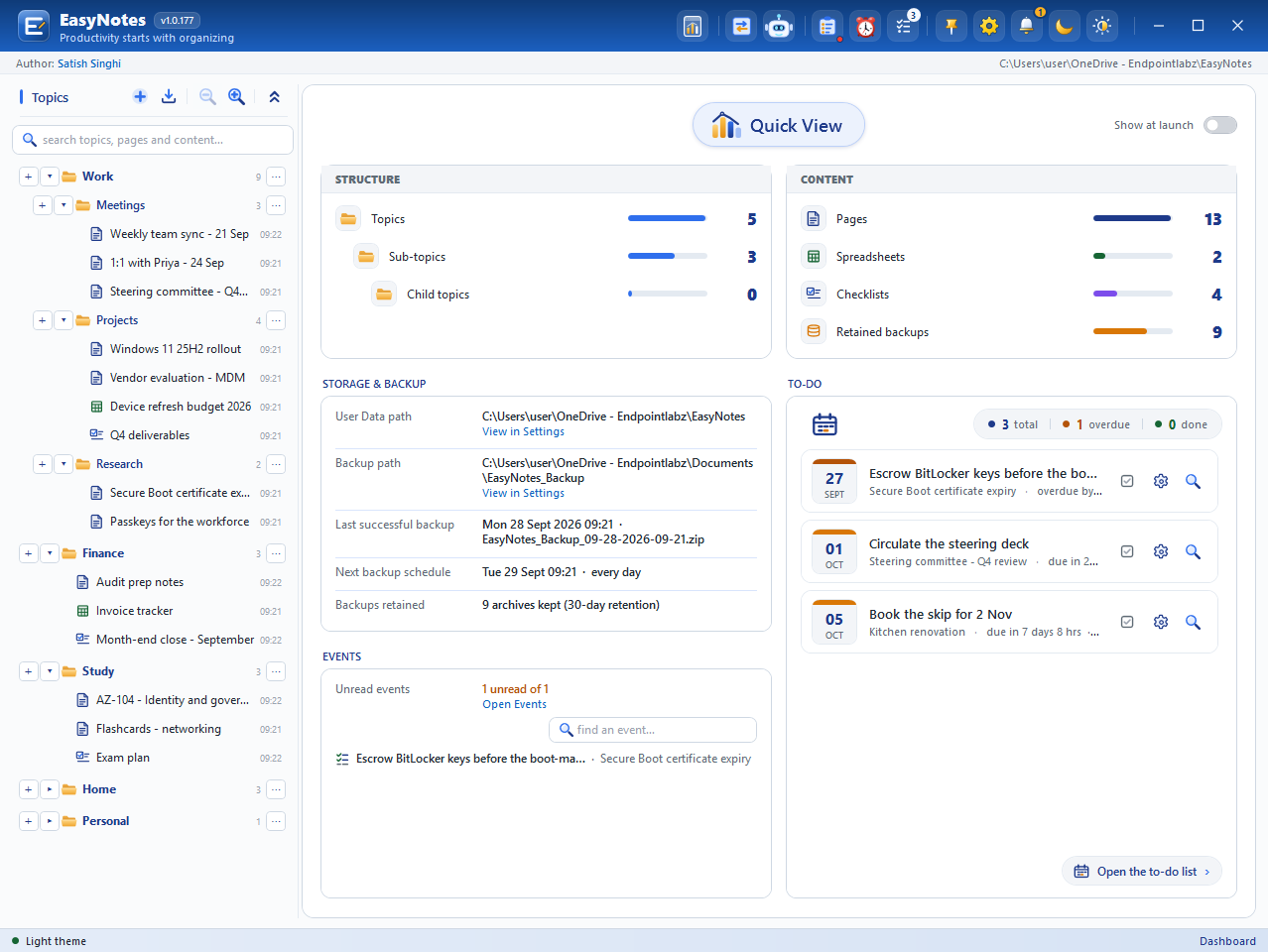
The dashboard – Quick View – is your workspace at a glance. Open it from the first button in the header; it also opens at every launch while Show at launch is on.
- Structure and Content – how many topics, sub-topics, child topics, pages, spreadsheets, checklists and retained backups you have.
- Storage & Backup – the User Data path, the backup path, the last successful backup and the next one.
- Events – a searchable list of what happened: pages, topics, backups, reminders and to-do changes.
- To-do – total, overdue and done, with reminder cards you can tick off, edit or jump to.
Left pane: hierarchy, pages, sheets and checklists
Hierarchy
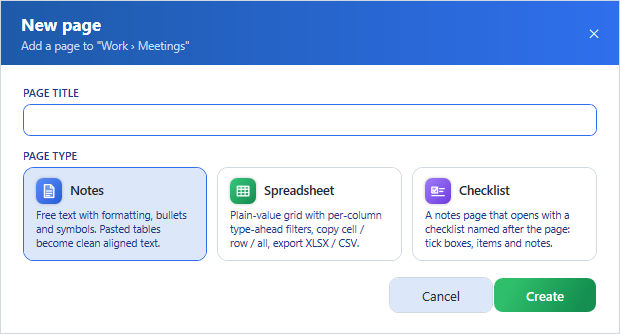
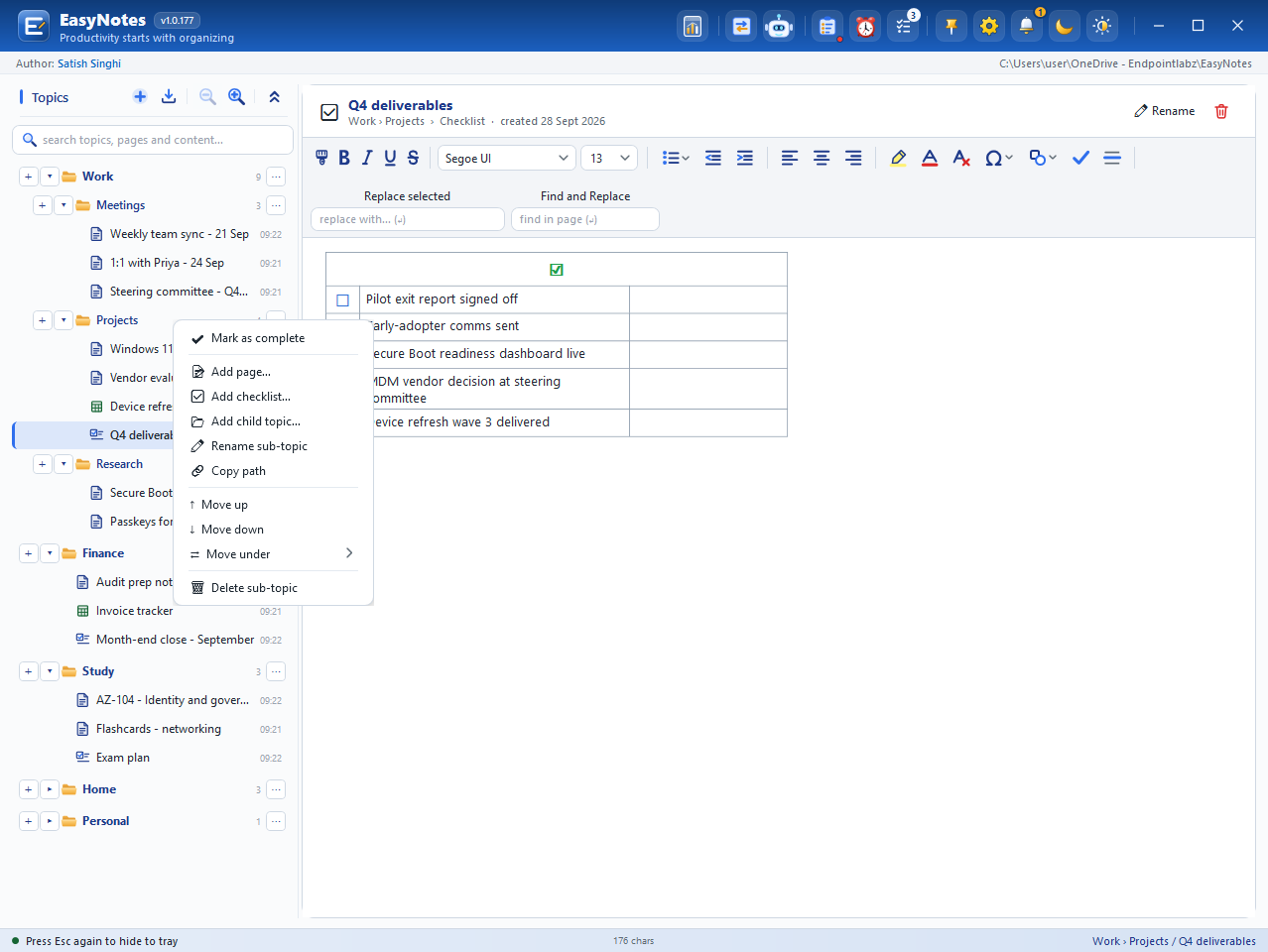
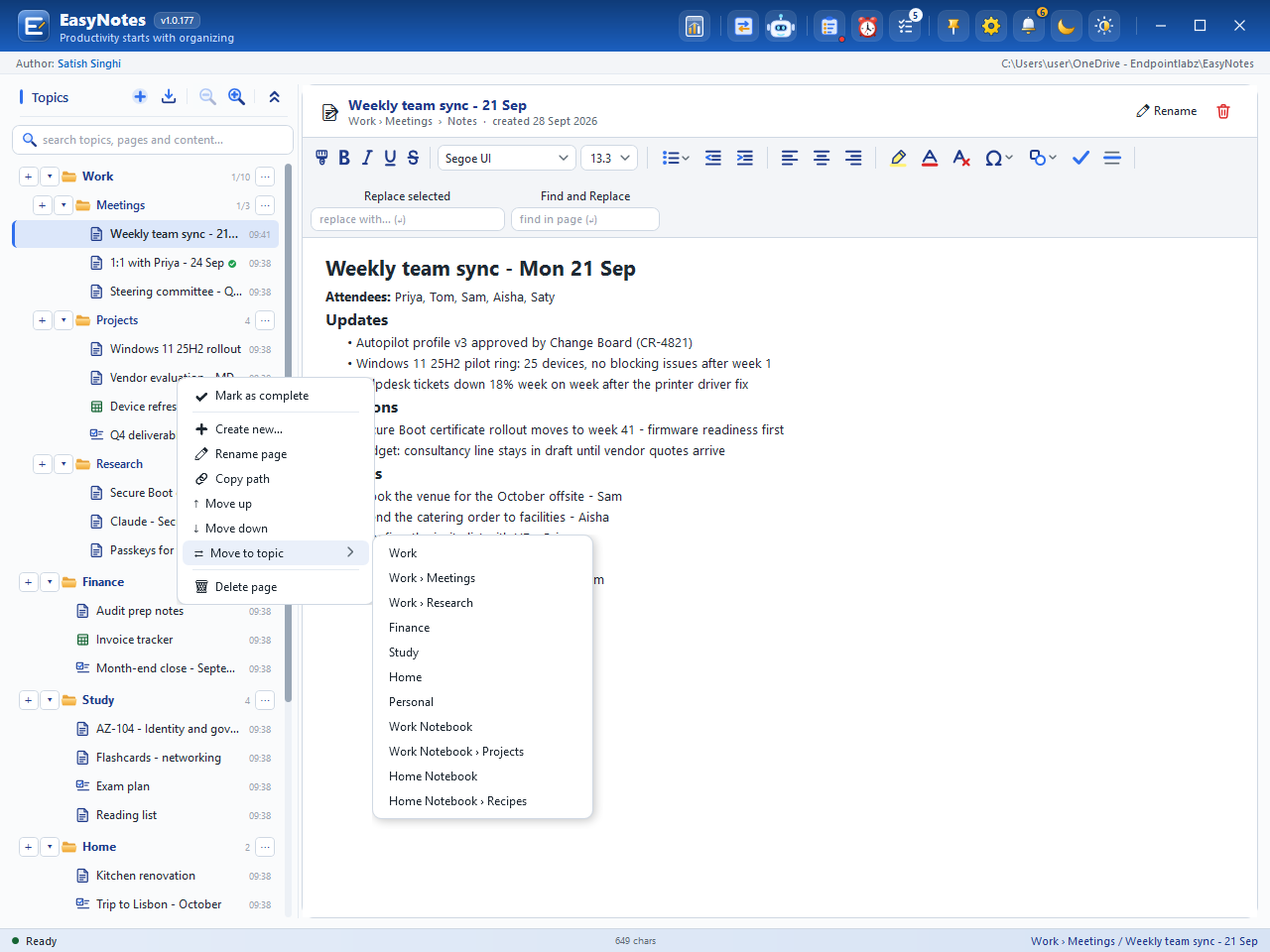
Topics nest three levels deep: Topic › Sub-topic › Child topic. Drag a topic onto the middle of another to move it inside, or onto its top or bottom edge to place it beside. Drag pages to re-order them or move them to another topic. The + on every topic row adds a page, a checklist or a sub-topic; Ctrl+N adds a page to the current topic and Ctrl+Shift+N a new topic.
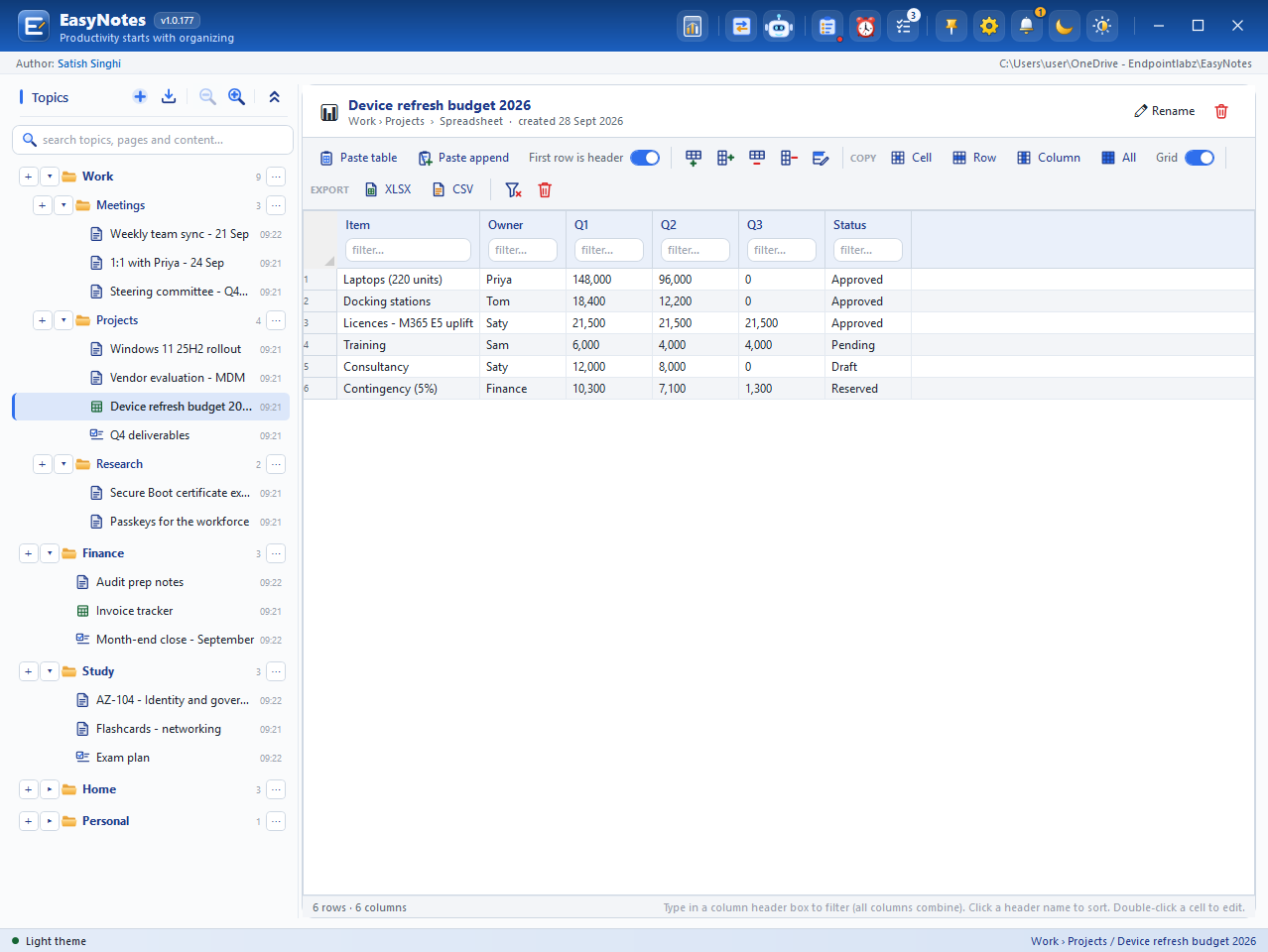
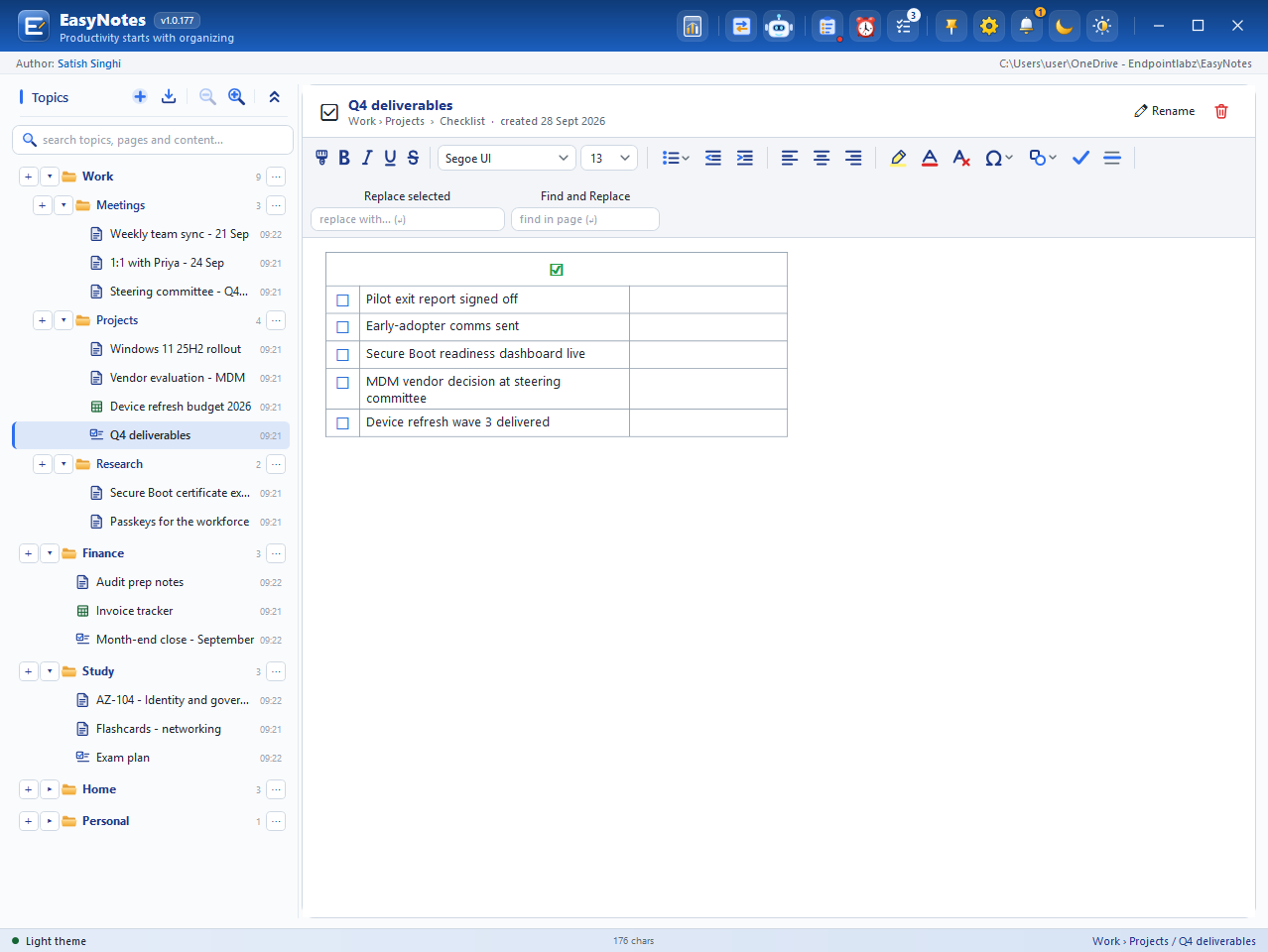
Three kinds of page
Zoom and search
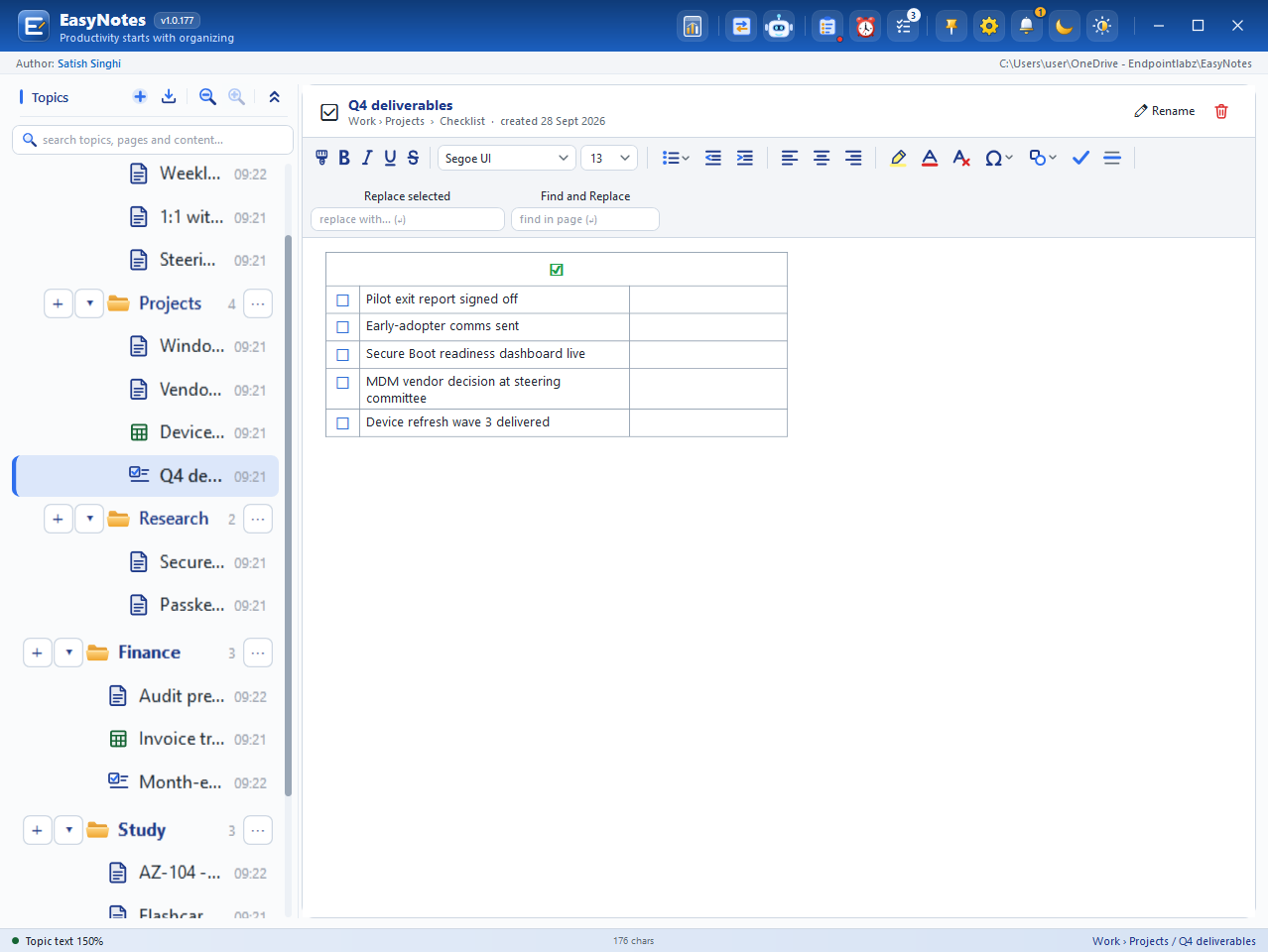
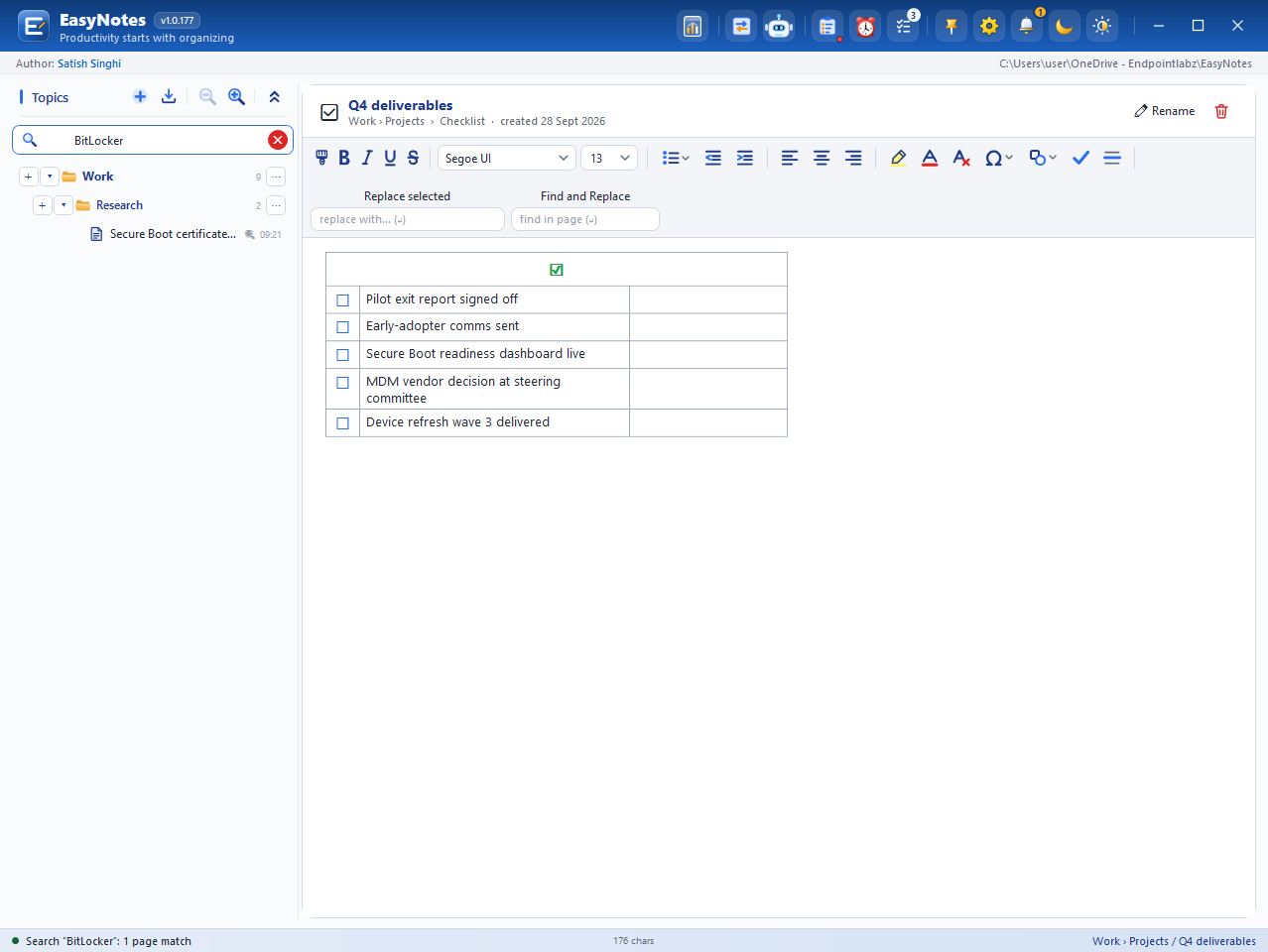
The magnifier buttons above the tree make topic text larger or smaller in 10% steps; Ctrl + mouse wheel over the tree does it in 5% steps, from 100% to 150%. The search box (Ctrl+K) looks through topic names, page titles and page contents as you type, and marks pages that match in their text; Esc clears it.
Right-click options
The note editor also has a format painter, bullets and numbering in several styles, indents, alignment, highlight and text colour, symbols, 40 vector shapes, floating pictures, a horizontal rule, Find and Replace (Ctrl+H) and Replace selected, and a per-page undo history.
To-Do’s and Reminders
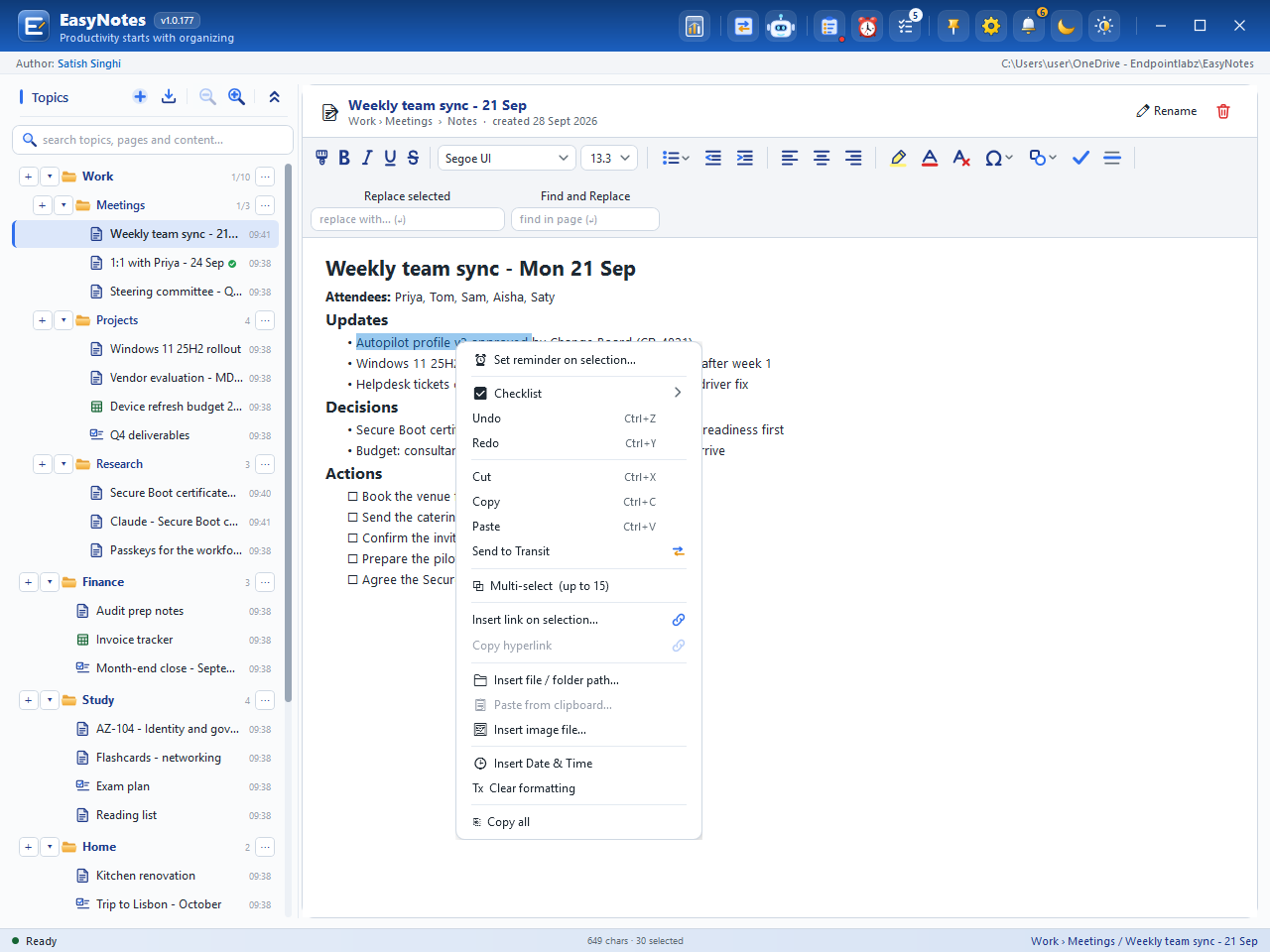
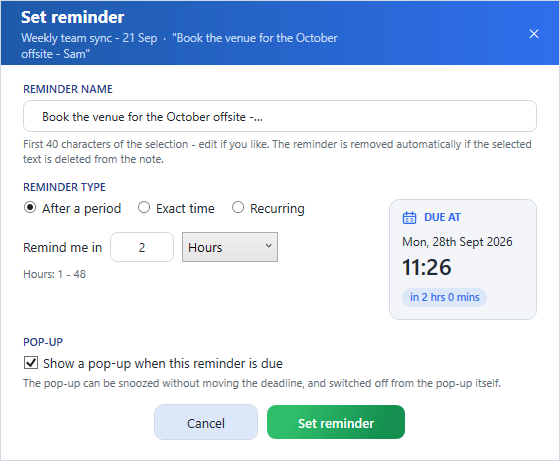
A reminder belongs to the text it was set on. Select text in a note, right-click and choose Set reminder on selection…, or use Set reminder on this item… on a checklist item. If the text moves to another page, the reminder follows it; if it is deleted, the reminder is flagged “Content not found” rather than removed silently.
| After a period | In 1–365 days, 1–48 hours or 1–120 minutes |
|---|---|
| Exact time | A date and time; fires once |
| Recurring | A start date, then every N days, hours or minutes |
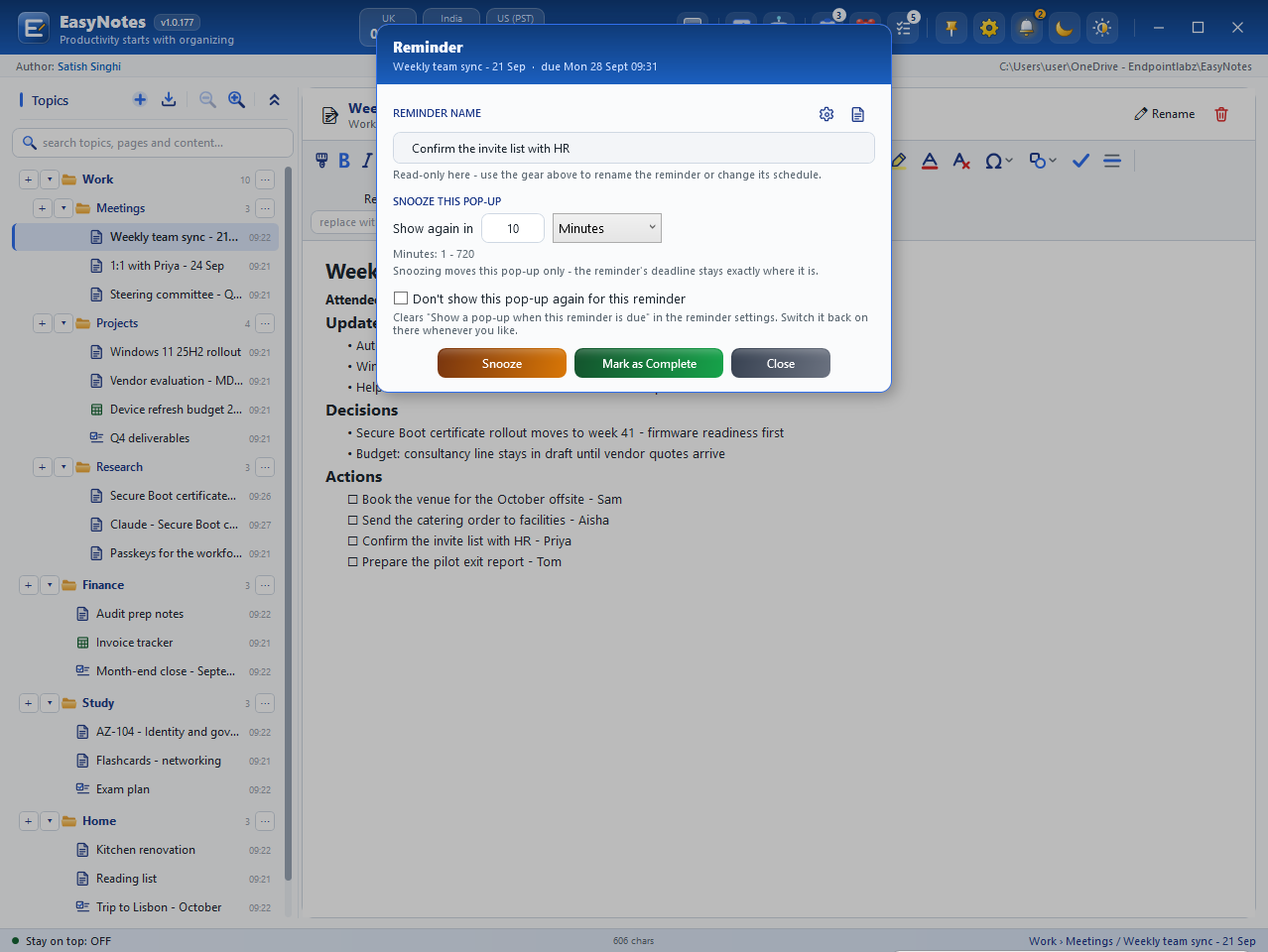
When a reminder is due, a pop-up rolls down over EasyNotes (or appears on its own when EasyNotes is hidden). Snooze it for minutes, hours or days – snoozing moves the pop-up, never the deadline – mark it complete, or switch the pop-up off for that reminder.
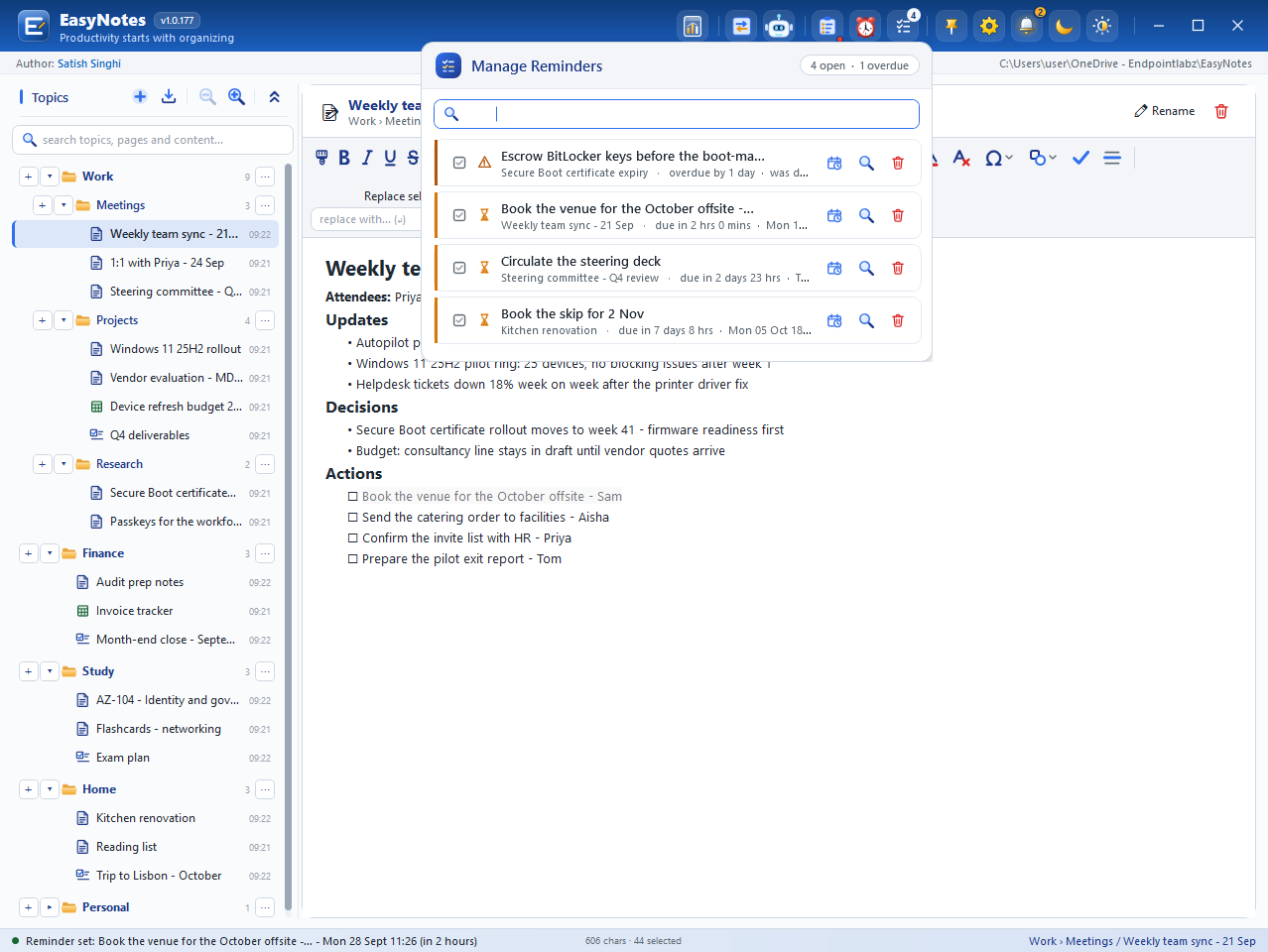
The to-do list in the header shows every reminder with a count of open items: a summary of open, overdue and done, a search box, and on each row a tick box, Edit the schedule, Go to content and Delete. Overdue items and items whose text has gone come first. The dashboard carries the same list.
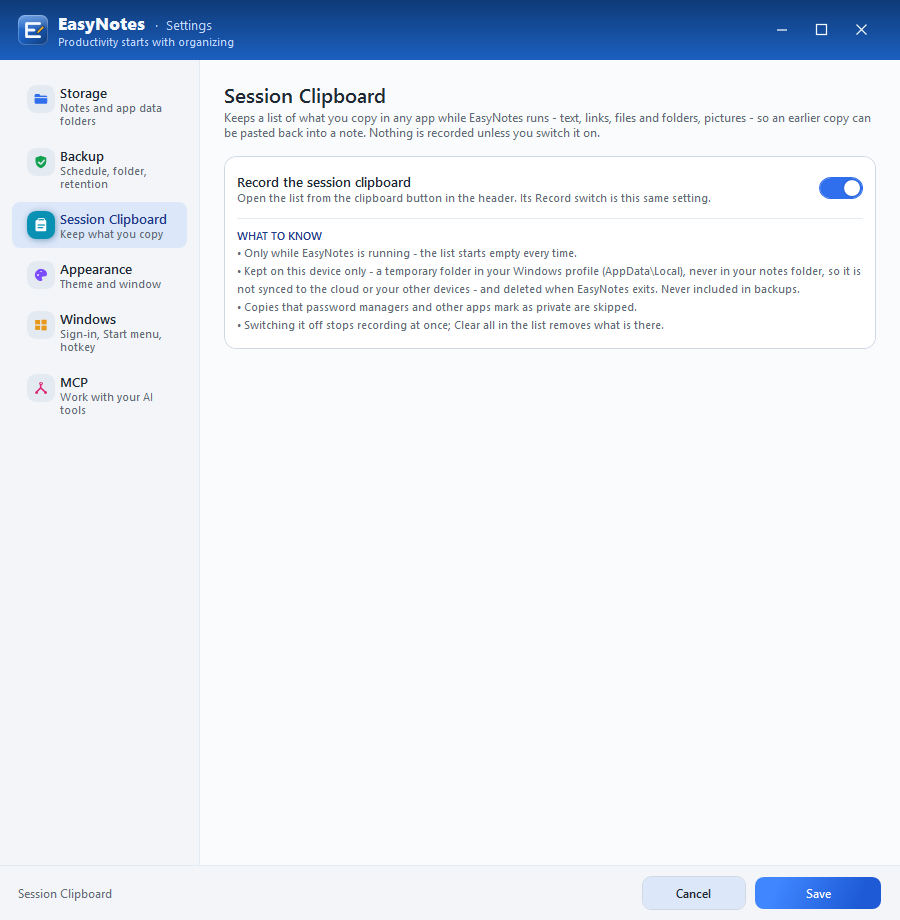
Session Clipboard
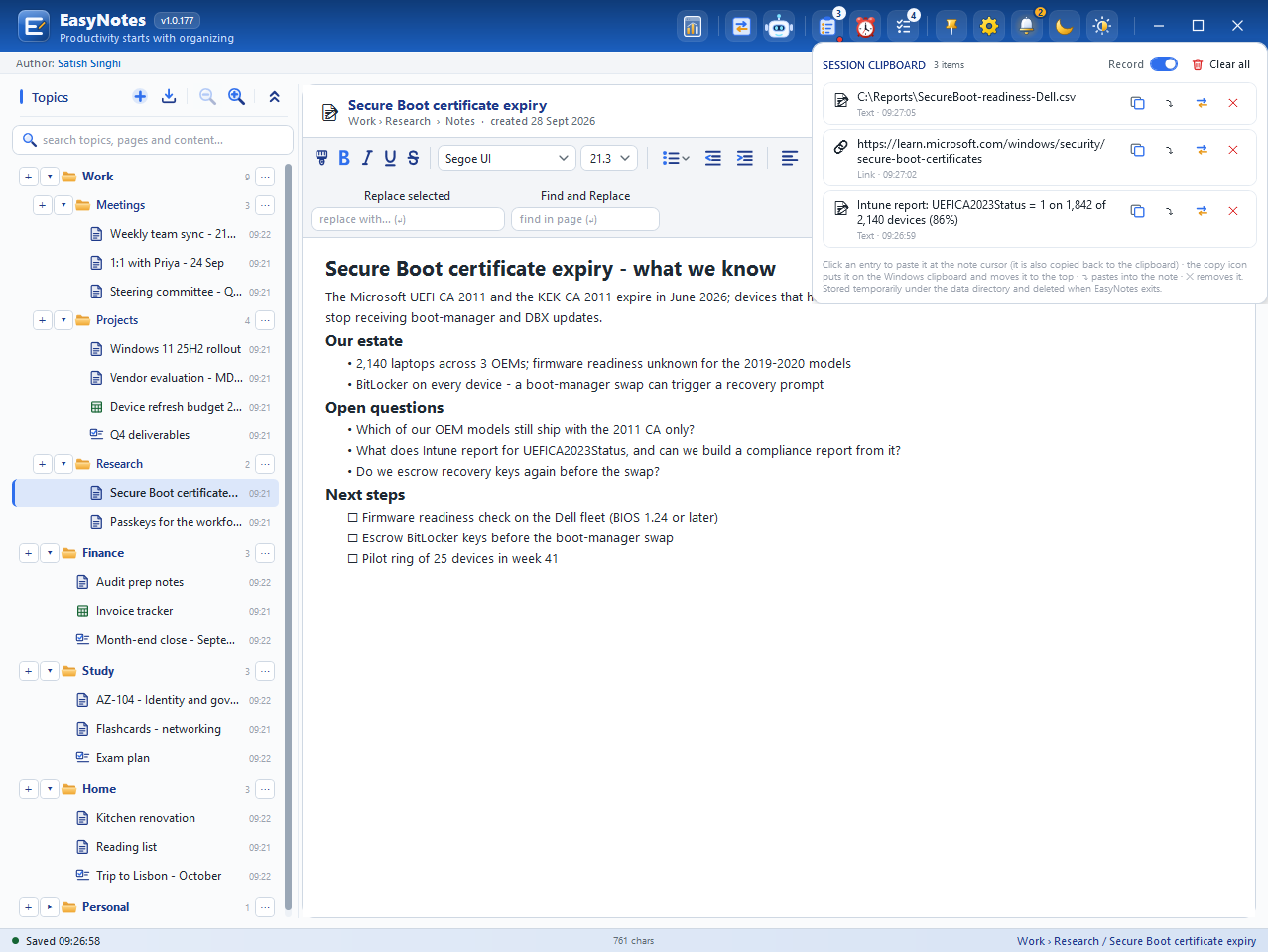
Switch on the session clipboard and EasyNotes keeps a list of what you copy in any app while it runs – text, links, files and folders, pictures – so an earlier copy can be pasted back into a note. Up to 300 items.
- Only while EasyNotes is running – the list starts empty every time.
- Kept on this device only, in a temporary folder in your Windows profile – never in your notes folder, never synced, never in backups, and deleted when EasyNotes exits.
- Copies that password managers and other apps mark as private are skipped.
- Switching it off stops recording at once; Clear all removes what is there.
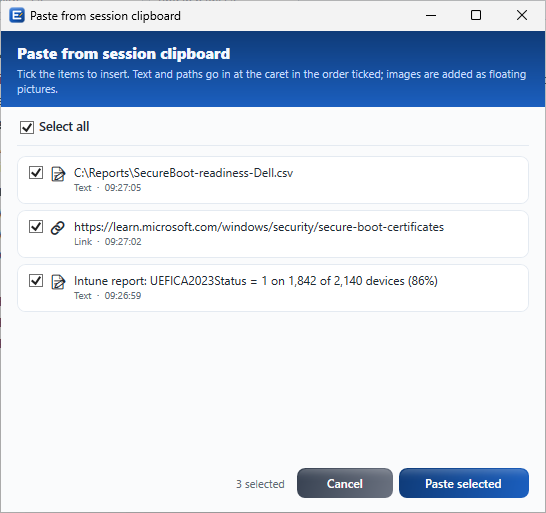
Open the list from the header: click an item to paste it at the cursor, or use its buttons to copy it back to the Windows clipboard, paste it into the open note, park it in Transit or remove it. In a note, right-click › Paste from clipboard… lets you tick several items and paste them in the order you ticked them.
Transit
Transit is a parking pad for content on its way somewhere – to or from another app, or between notes. It opens from the header and closes with Esc, and it keeps pictures, links and formatting.
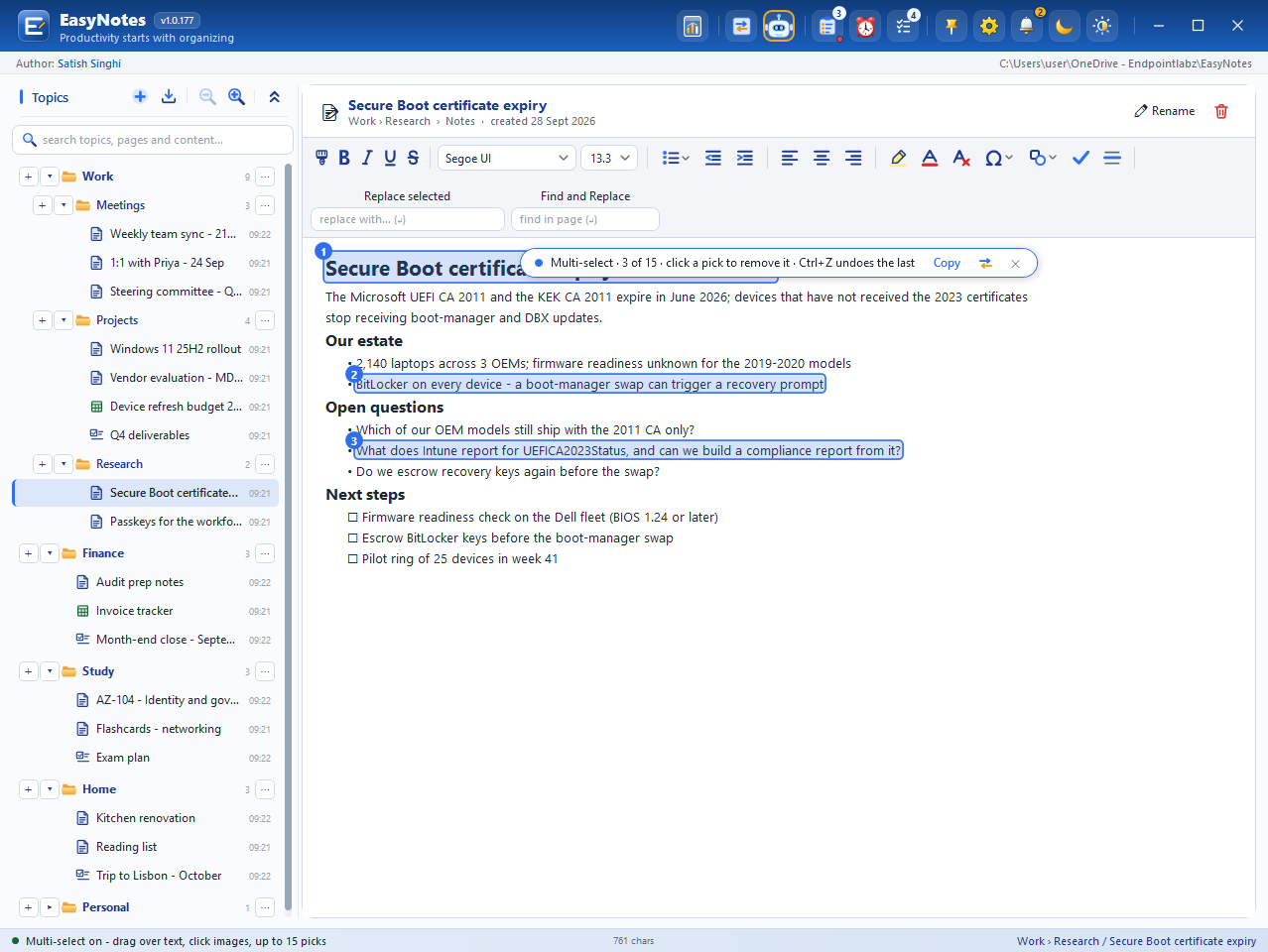
Send a selection with right-click › Send to Transit, send a session-clipboard item with its Transit button, or use multi-select: right-click › Multi-select (up to 15), then drag over up to 15 separate pieces of a page. They are copied or sent in the order you picked them – with formatting for Word, Outlook, OneNote and Teams, and as plain text everywhere else.
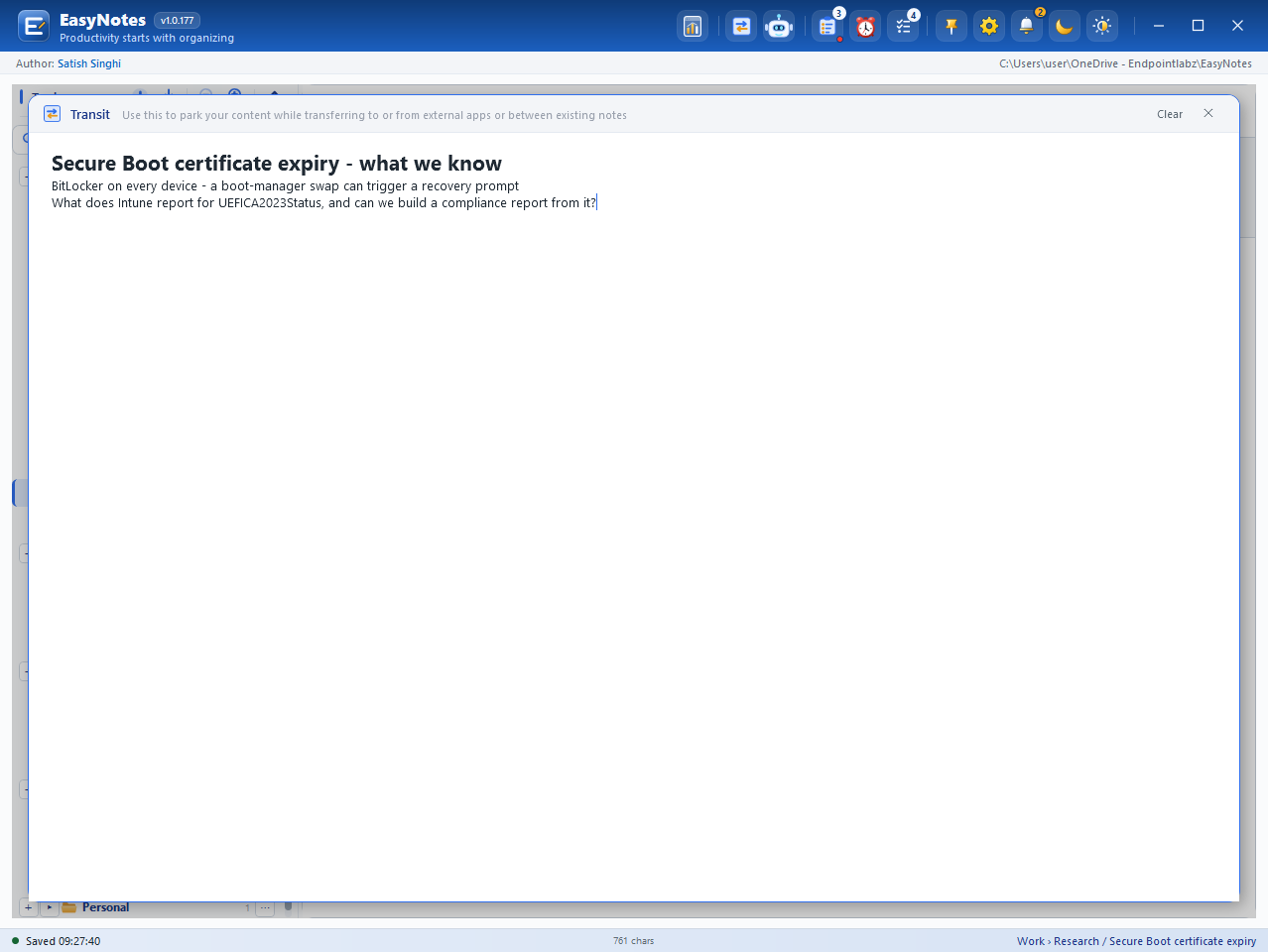
Transit is stored with your notes, so it is kept between sessions, included in backups and synced along with your notes folder. Clear empties it.
Header options

- Dashboard – Quick View.
- Transit – the parking pad.
- MCP activity – off, on or busy.
- Session clipboard – with a recording dot and count.
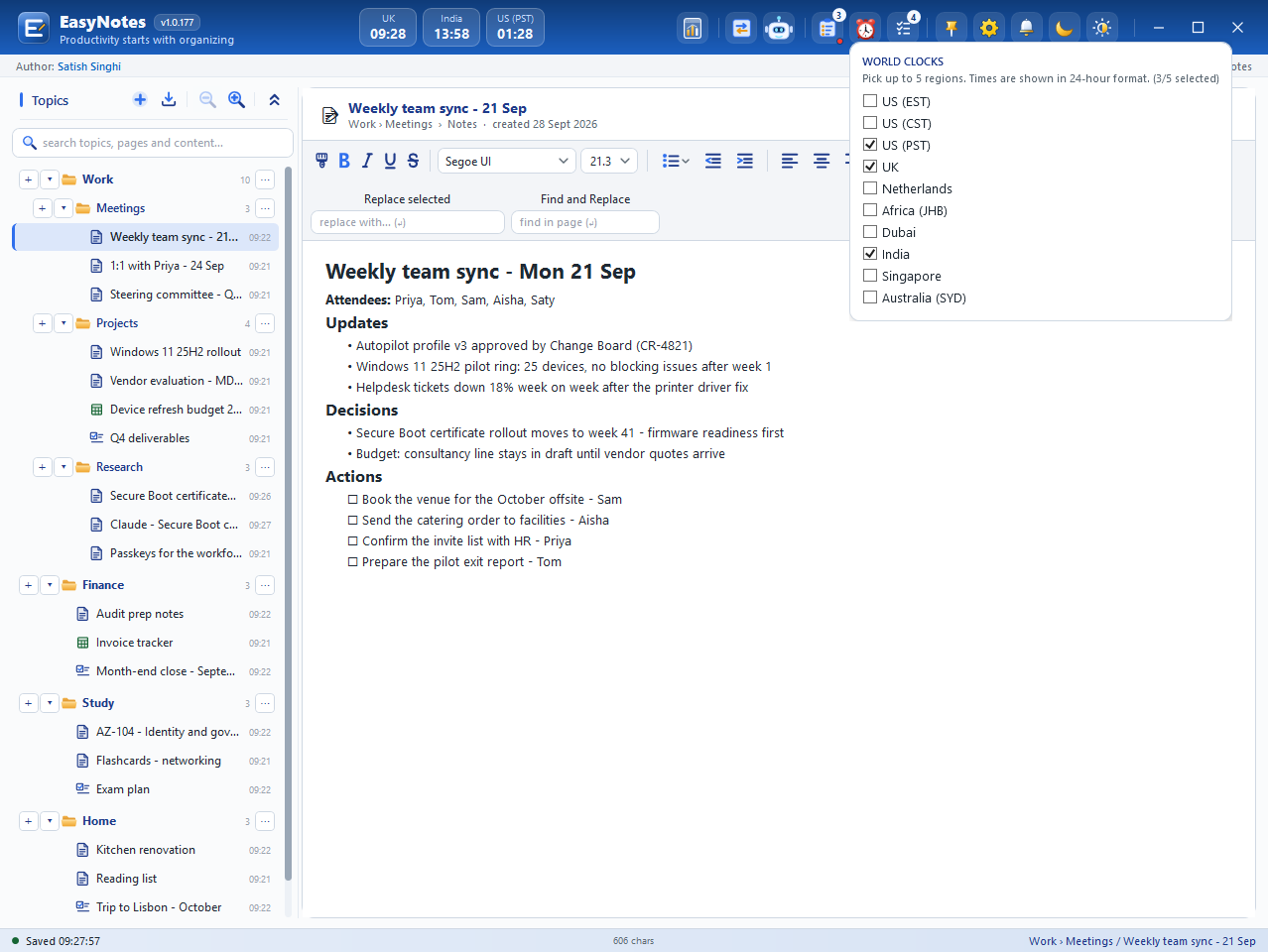
- World clocks – up to five regions.
- To-do list – open items.
- Stay on top – Ctrl+T.
- Settings
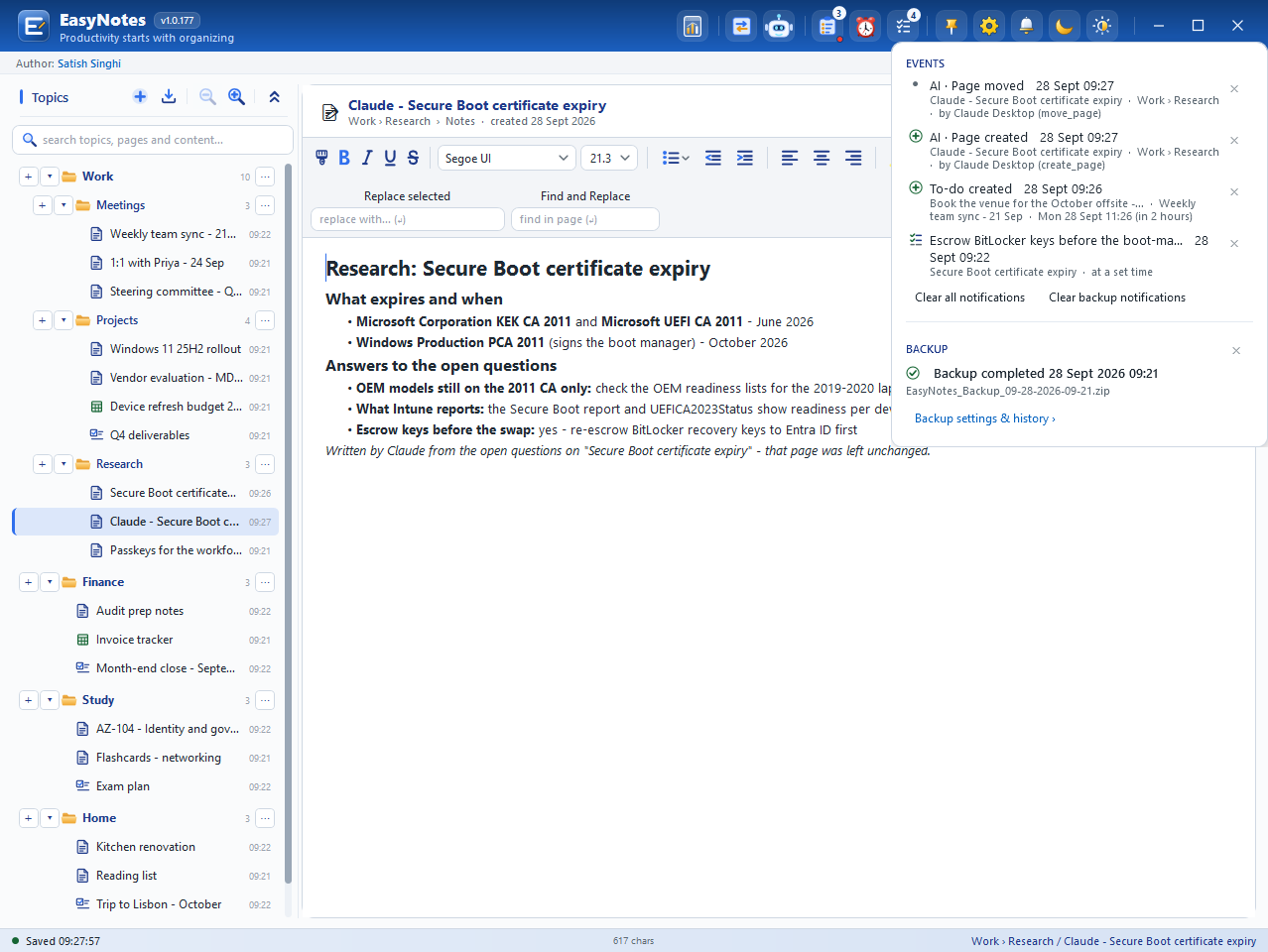
- Notifications – events and backup status.
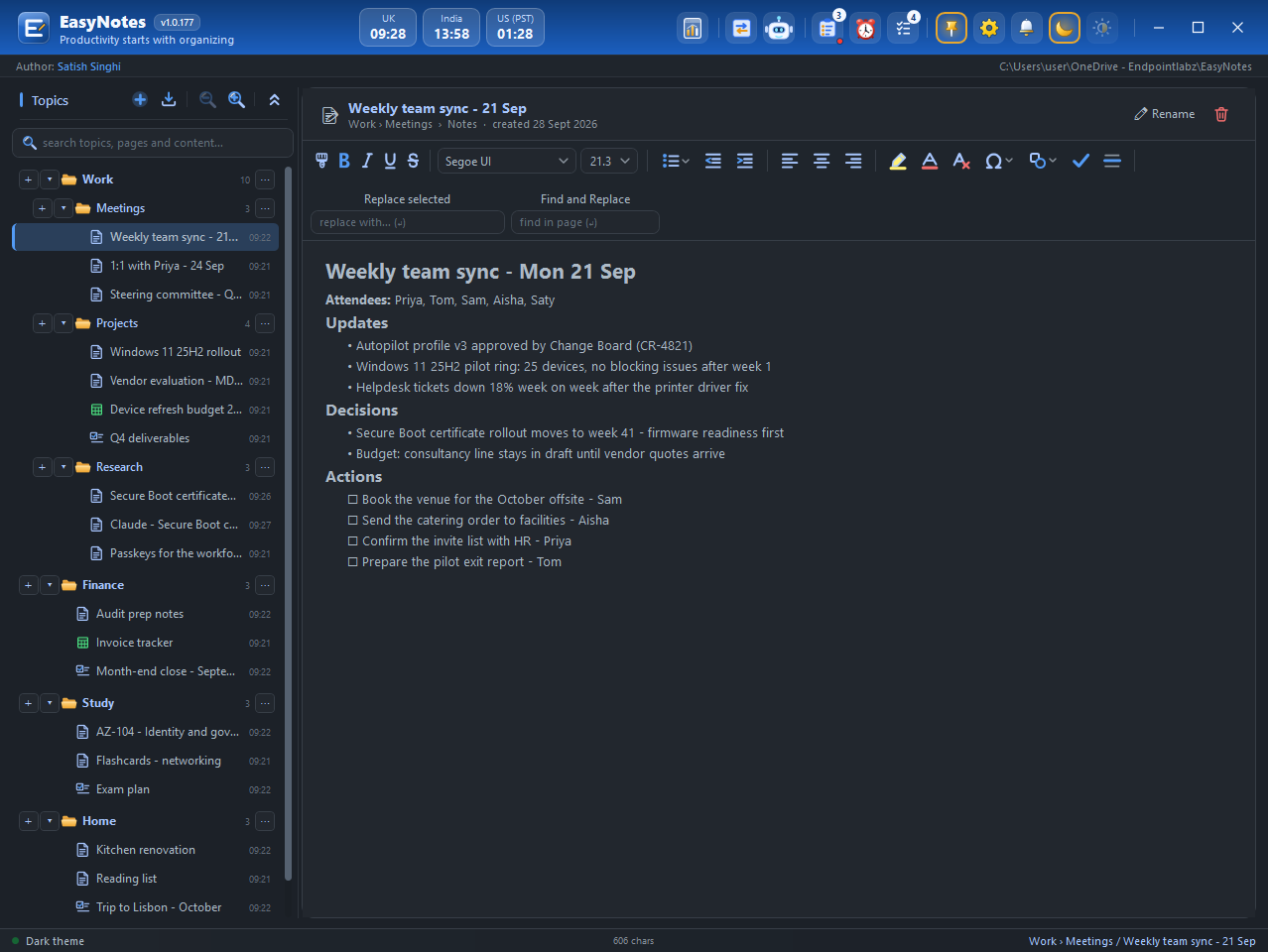
- Dark theme
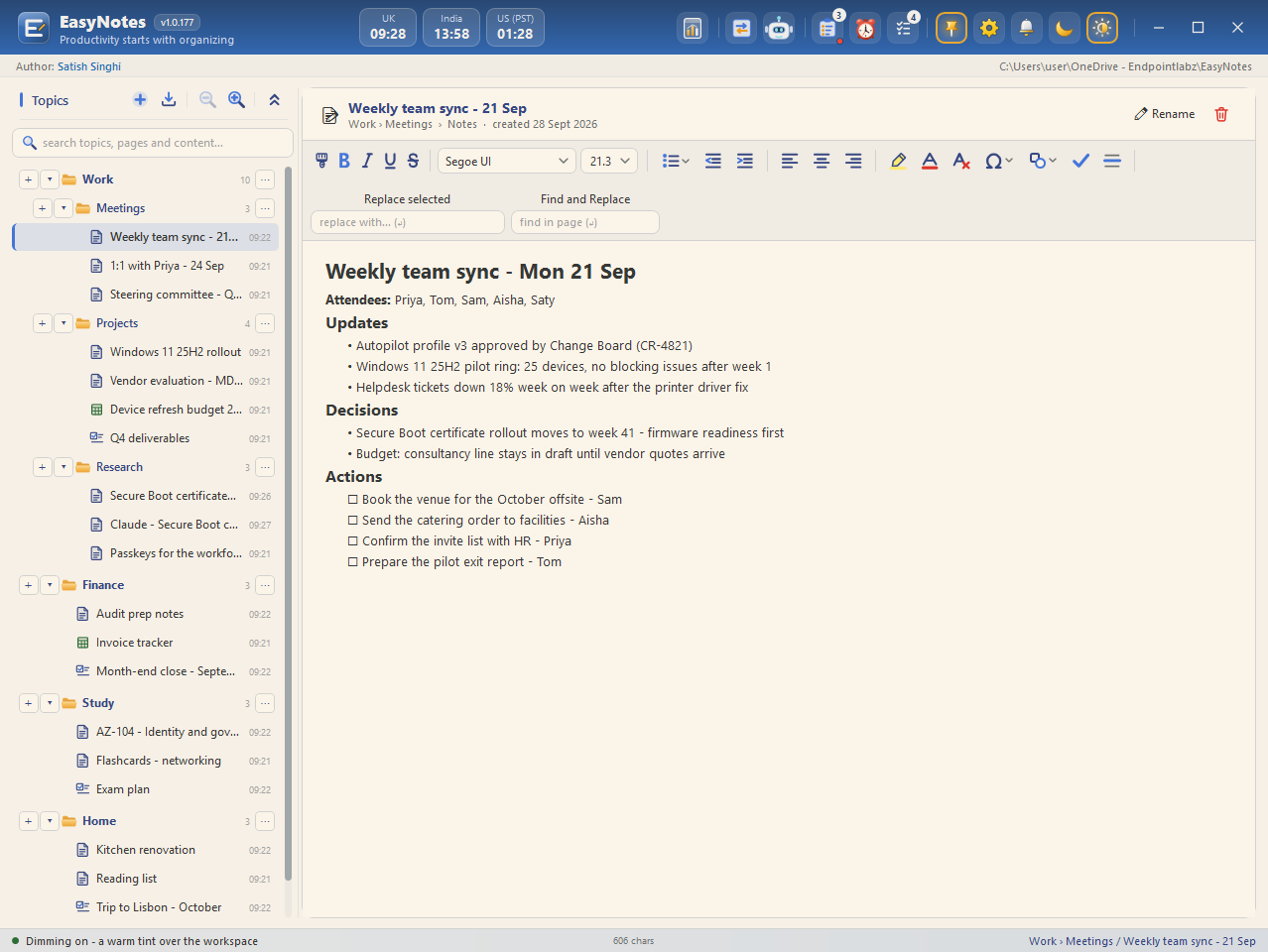
- Dim
MCP activity
The bot shows the state of the MCP endpoint at a glance: dimmed when it is off, lit when it is on and listening, and glowing amber while an AI tool is using EasyNotes. Hover for the endpoint and the last call; click to open Settings › MCP. With Notify me of every write on, each change an AI tool makes arrives in the bell as “AI · …” with the client, the tool and the page.


To-Do’s dropdown
The checklist icon carries the number of open items and opens the to-do list described under To-Do’s and Reminders.
World clock
Tick up to five regions – US (EST), US (CST), US (PST), UK, Netherlands, Africa (JHB), Dubai, India, Singapore, Australia (SYD) – and their times appear in the header in 24-hour format. Click a clock to remove it.
Stay on top
The pin keeps EasyNotes above other windows while you copy and paste between apps. Ctrl+T toggles it, and so does the tray menu.
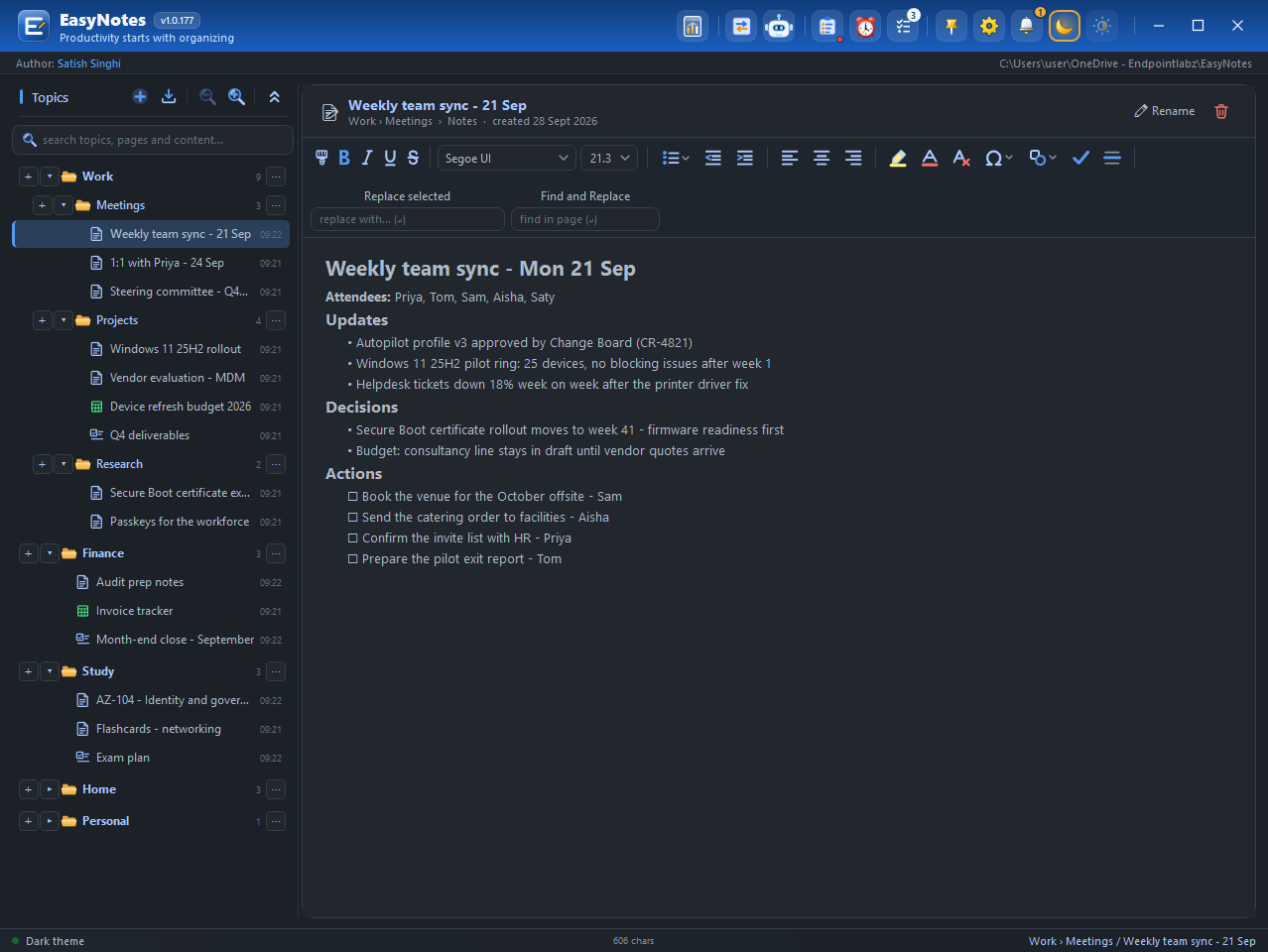
Dark theme
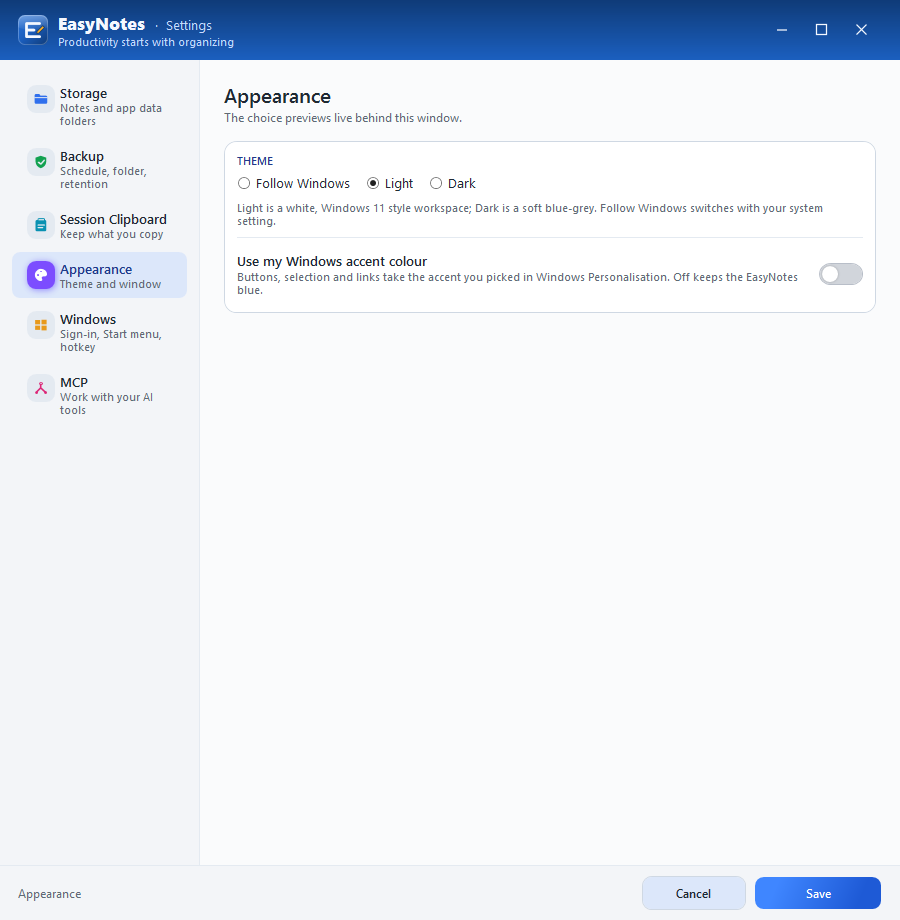
The moon switches between the light workspace and a soft blue-grey dark theme. Settings › Appearance can also follow Windows and use your Windows accent colour.
Dim
Dim lays a warm tint over the light theme for long sessions or evening work. It applies to the light theme only – the dark theme is already easy on the eyes.
Settings
The gear opens Settings – see below.
Settings
Six pages, each one click away from the rail. Everything chosen during setup can be changed here.
| Storage | User Data and App Data folders, with Change… and Open, and the sync status of the notes folder |
|---|---|
| Backup | Automatic backups (on), folder, Daily every 1 day / Hourly 2–8 h, keep 30 days (1–90), Back up now, Restore, backup log, status and history |
| Session Clipboard | Record the session clipboard (off for new installs) |
| Appearance | Follow Windows / Light / Dark; use my Windows accent colour (off) |
| Windows | Start at sign-in and start minimised to the tray (on); Start menu entry (the Store app adds one itself); global hotkey Ctrl+Shift+Space (on) |
| MCP | Enable MCP integration (off), port 47391, notify me of every write (on), rules for AI tools, access tokens, audit log |
Reference
Keyboard shortcuts
| Ctrl+Shift+Space | Show or hide EasyNotes from any app |
|---|---|
| Ctrl+N / Ctrl+Shift+N | New page in the current topic / new topic |
| Ctrl+K | Search topics, pages and content |
| Ctrl+F / Ctrl+H | Find in page / Find and Replace |
| Ctrl+T | Stay on top |
| Ctrl+Shift+O | Import from OneNote |
| Ctrl+S | Save now (pages save as you type anyway) |
| Ctrl+Click | Open a link or a copied Topic › Page path |
| Esc Esc | Hide to the tray |
| Tab / Shift+Tab | Indent / outdent; move through a checklist |
| Ctrl+Enter | Add a row to a spreadsheet |

Install EasyNotes from the Microsoft Store
Free, for Windows 10 (2004 or later) and Windows 11. No account, no telemetry.